View all guides
Mobile Coverage Extender Pro
Installation GuideBefore you begin installing your Mobile Coverage Extender Pro
Please ensure you have a b-box installed and that you have an internet and mobile subscription with Proximus.
Required components for the installation
- The Mobile Coverage Extender Pro
- The power supply cable
- The Ethernet cable
- The wall-mounting kit
Choosing the best location
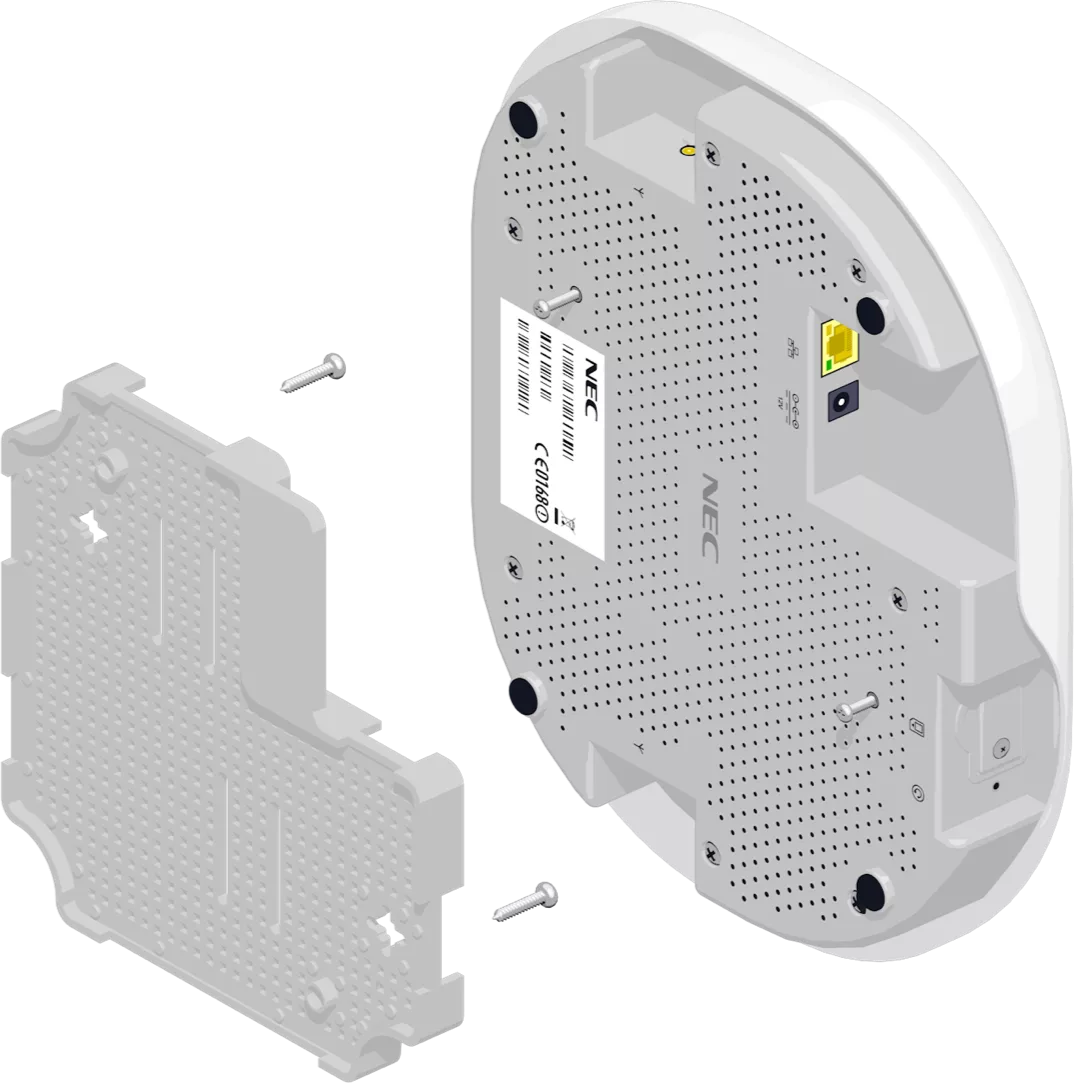
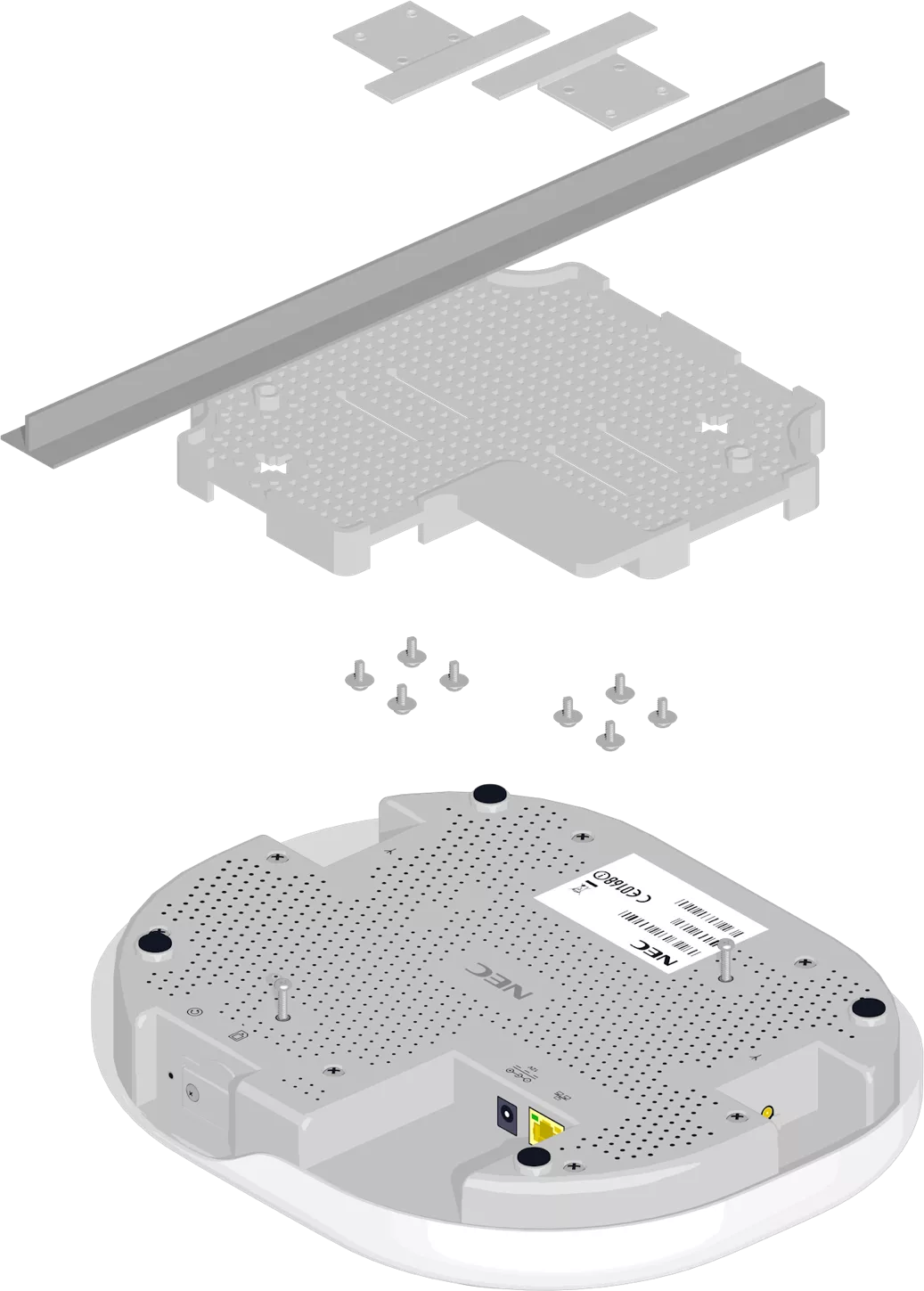
For optimum coverage, place your Mobile Coverage Extender Pro in a central position in your office, away from a window. Place it on a flat, stable surface or, preferably, attach it to the wall or suspended ceiling using the wall-mounting kit provided, at least 30 cm away from other devices that emit radio waves (Wi-Fi routers, etc.). Also ensure there is sufficient clearance to prevent the device from overheating.
-
Mounting on a wall using screws and wall plugs:
 Or fitting onto a suspended ceiling beam:
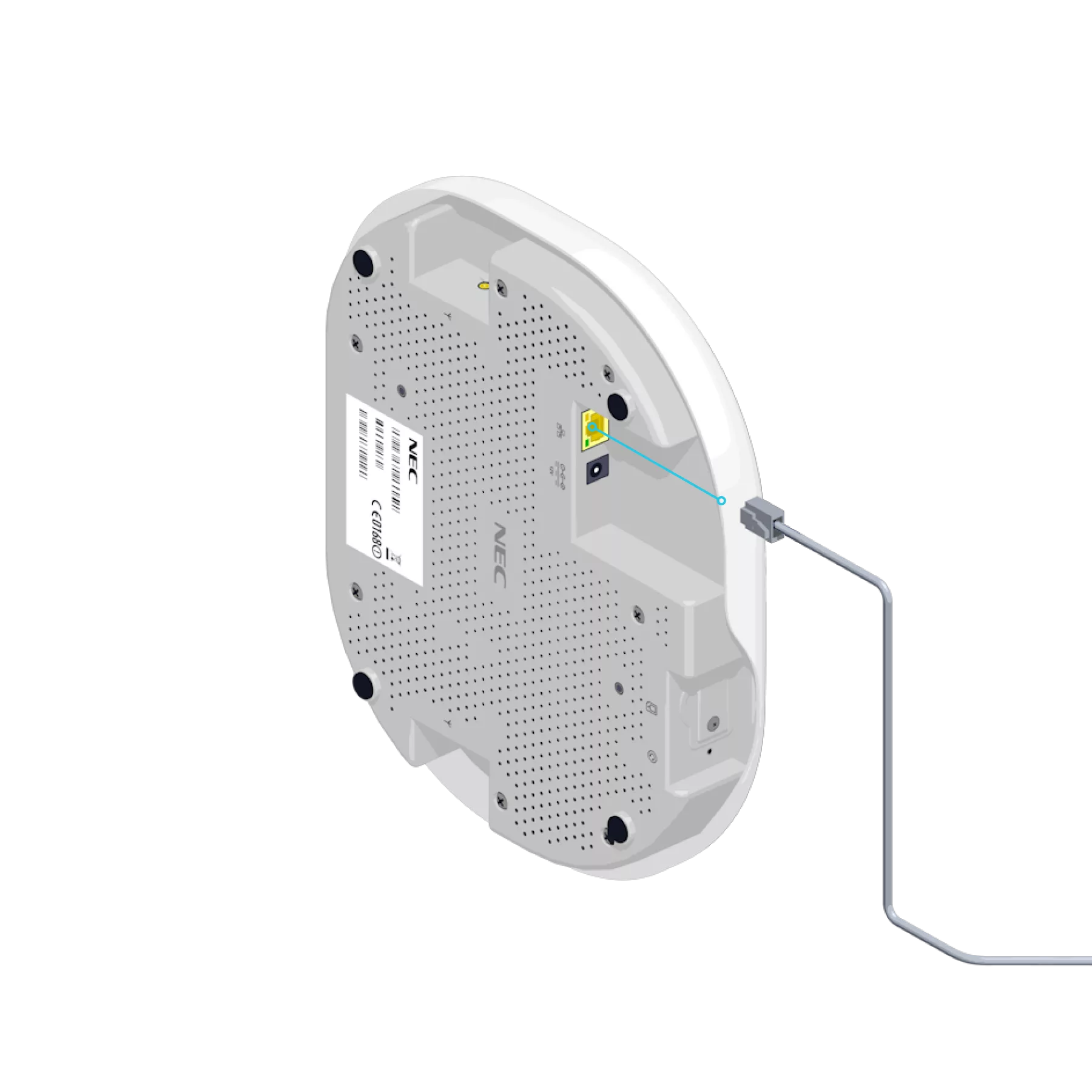
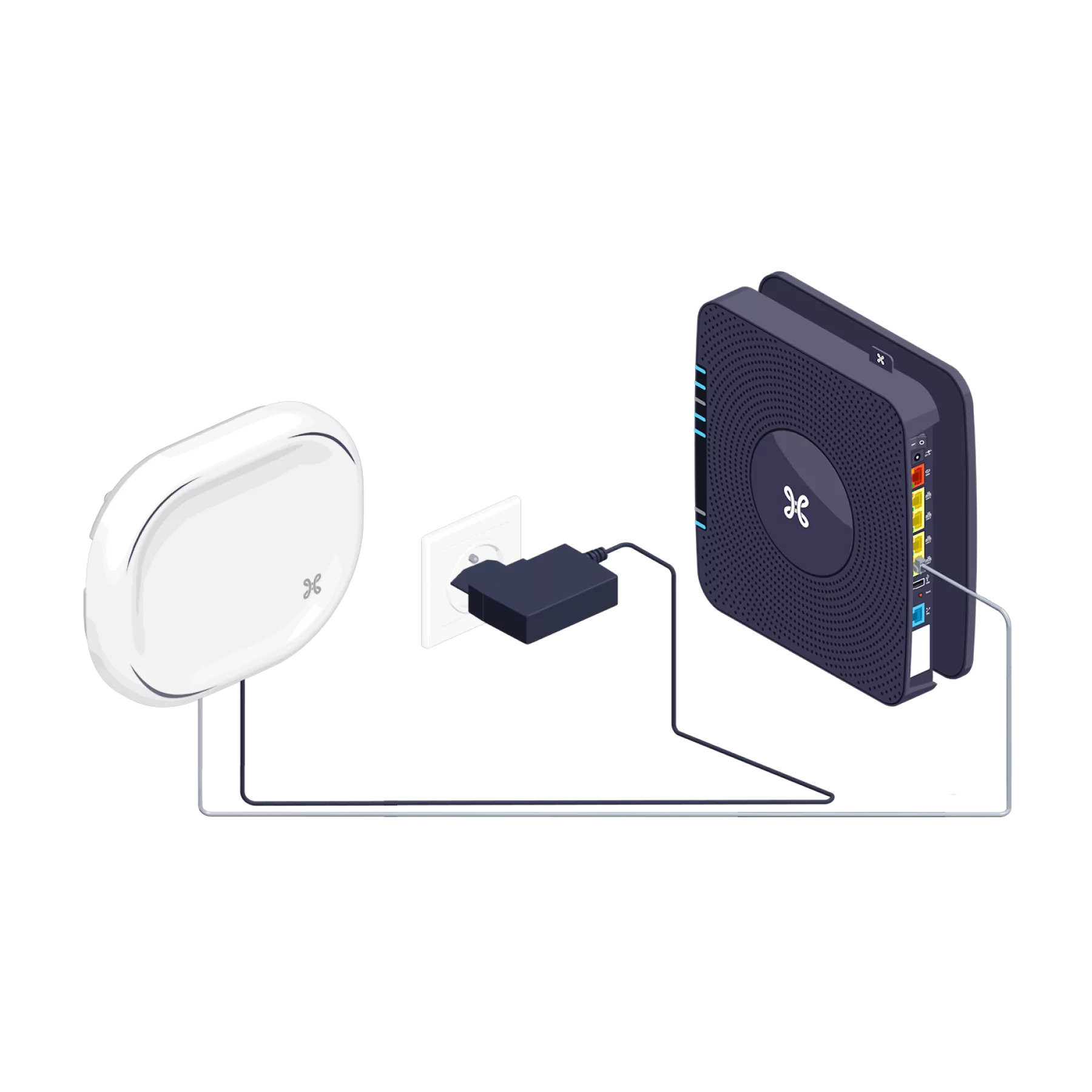
Connect the Mobile Coverage Extender Pro to the b-box
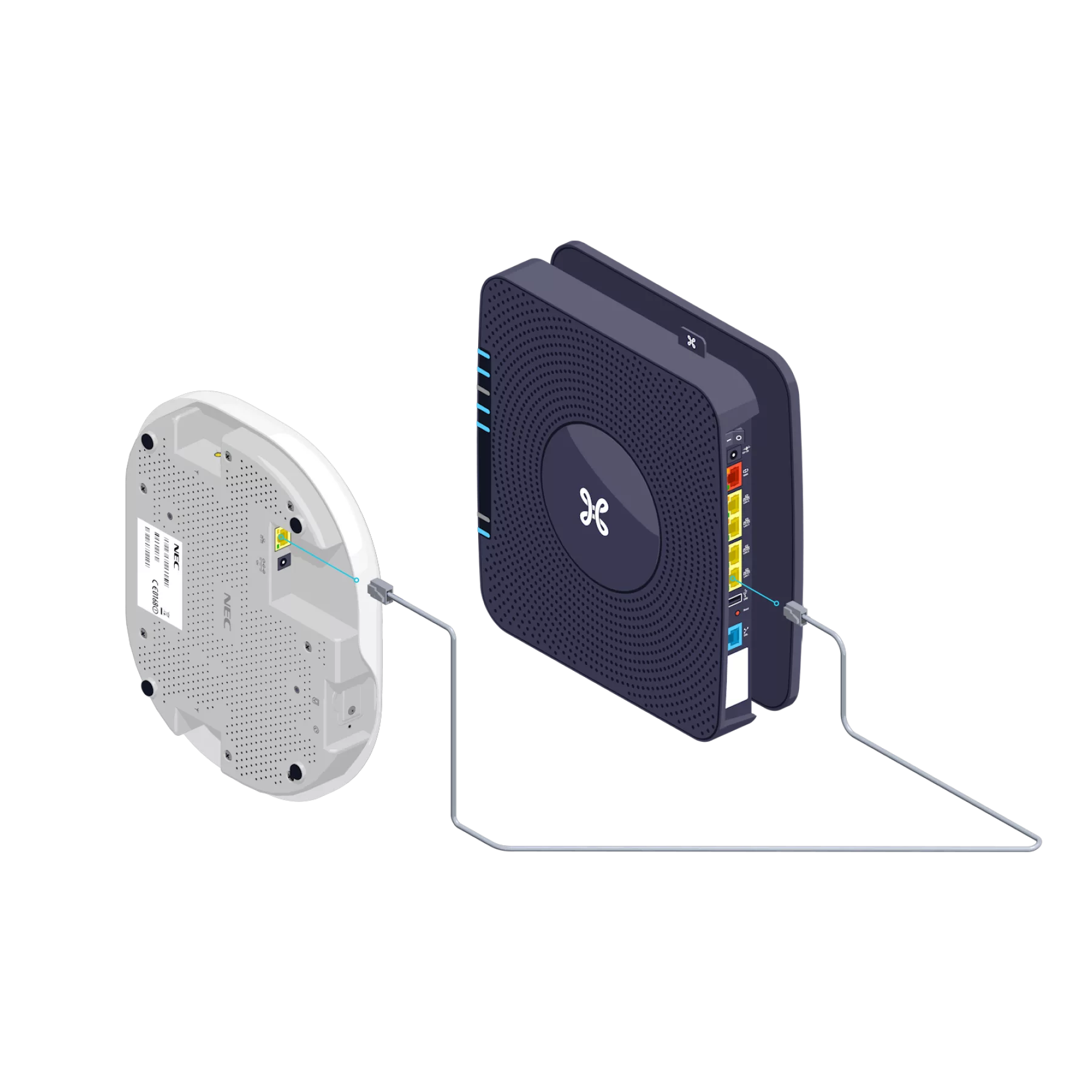
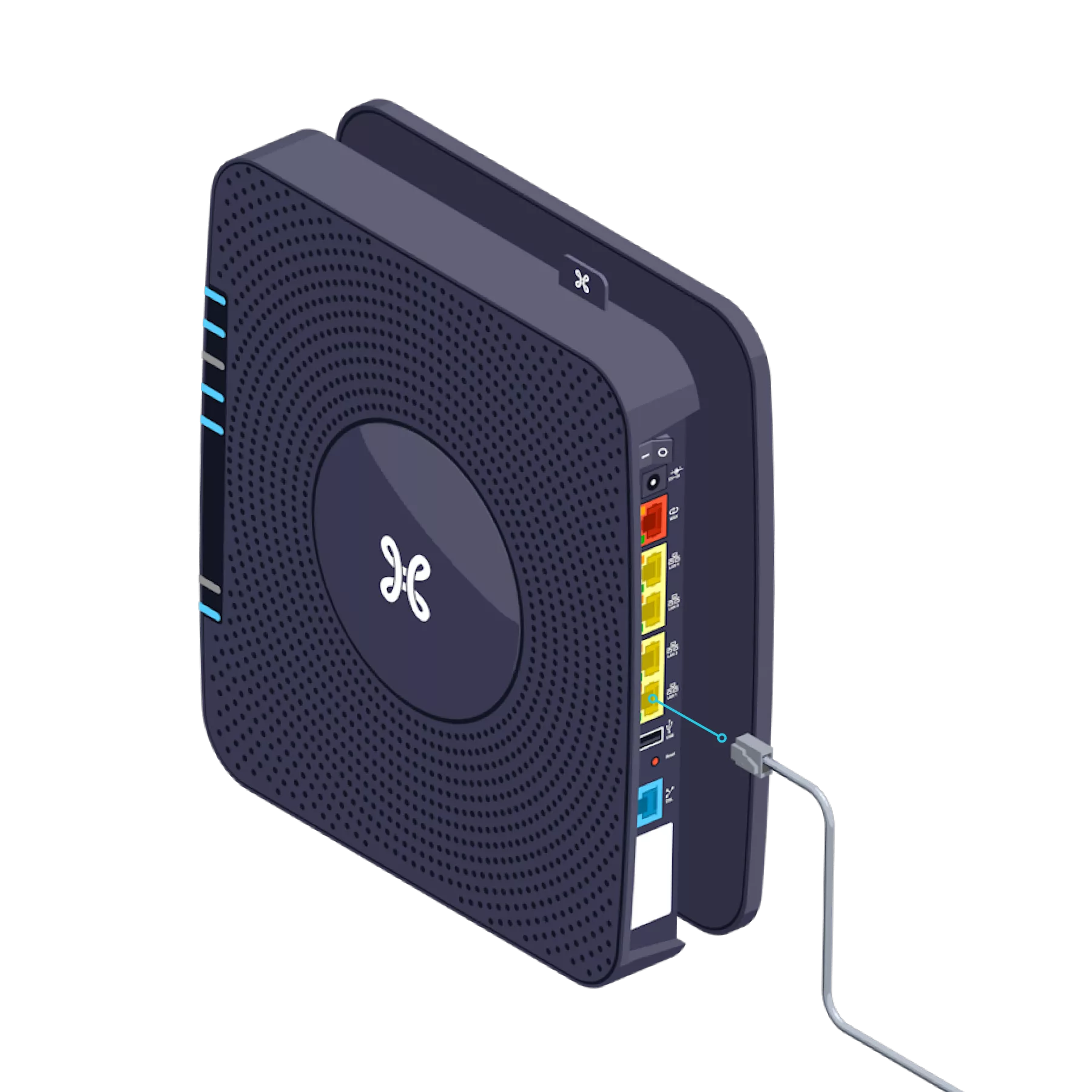
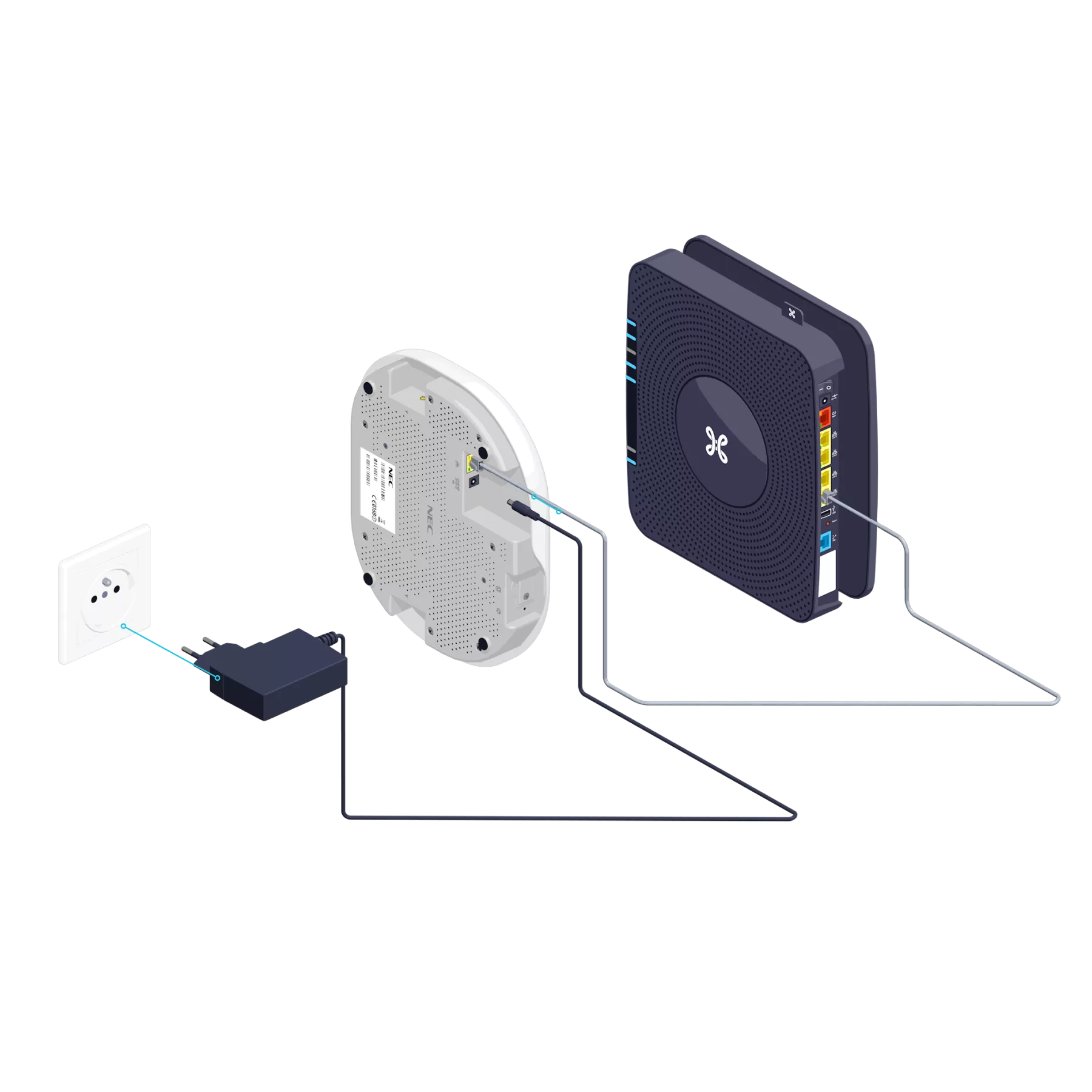
Use the Ethernet cable and connect it to one of the yellow LAN ports on the back of the b-box. If all the ports are already in use, we recommend using an Ethernet hub or switch. These devices will allow you to increase the number of available ports.
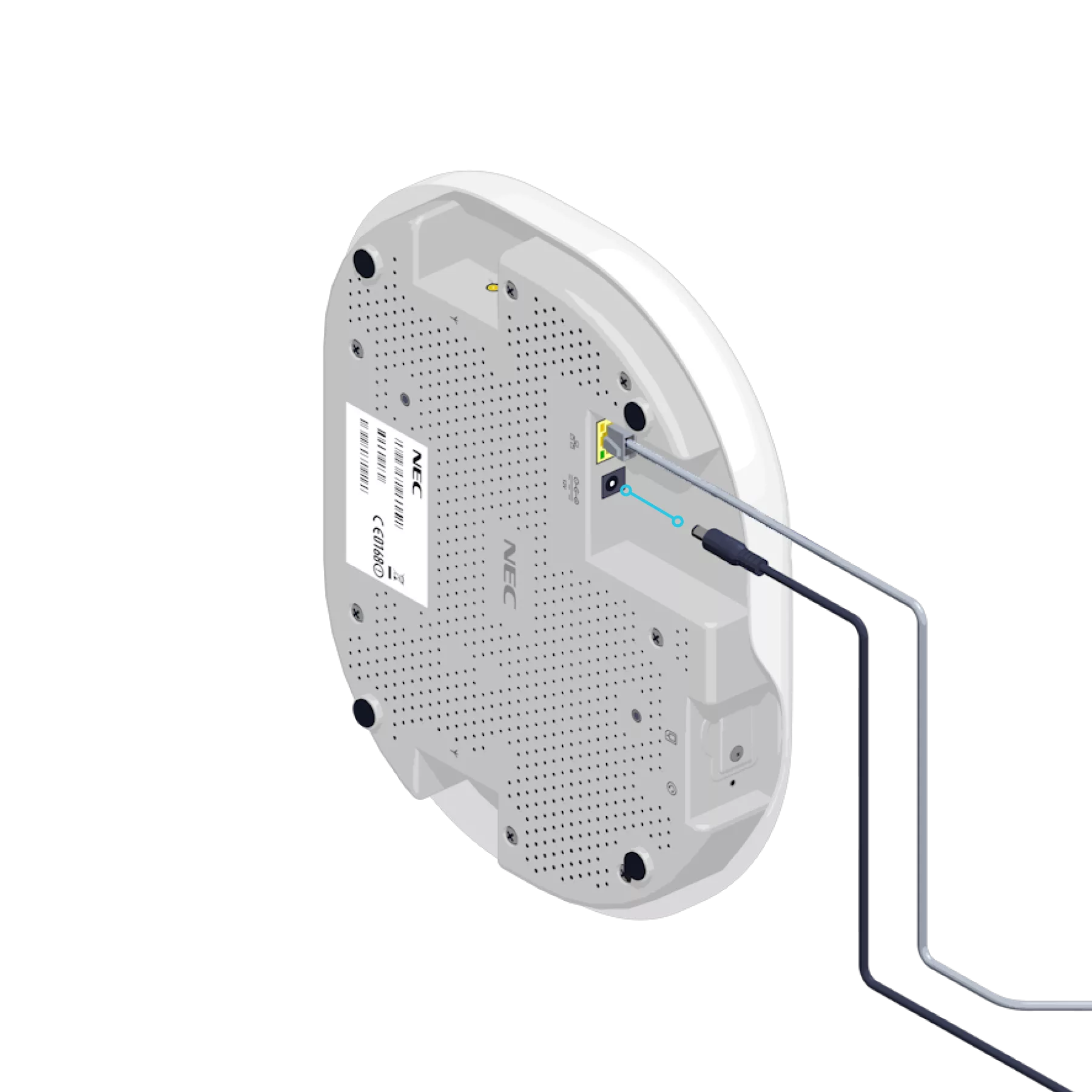
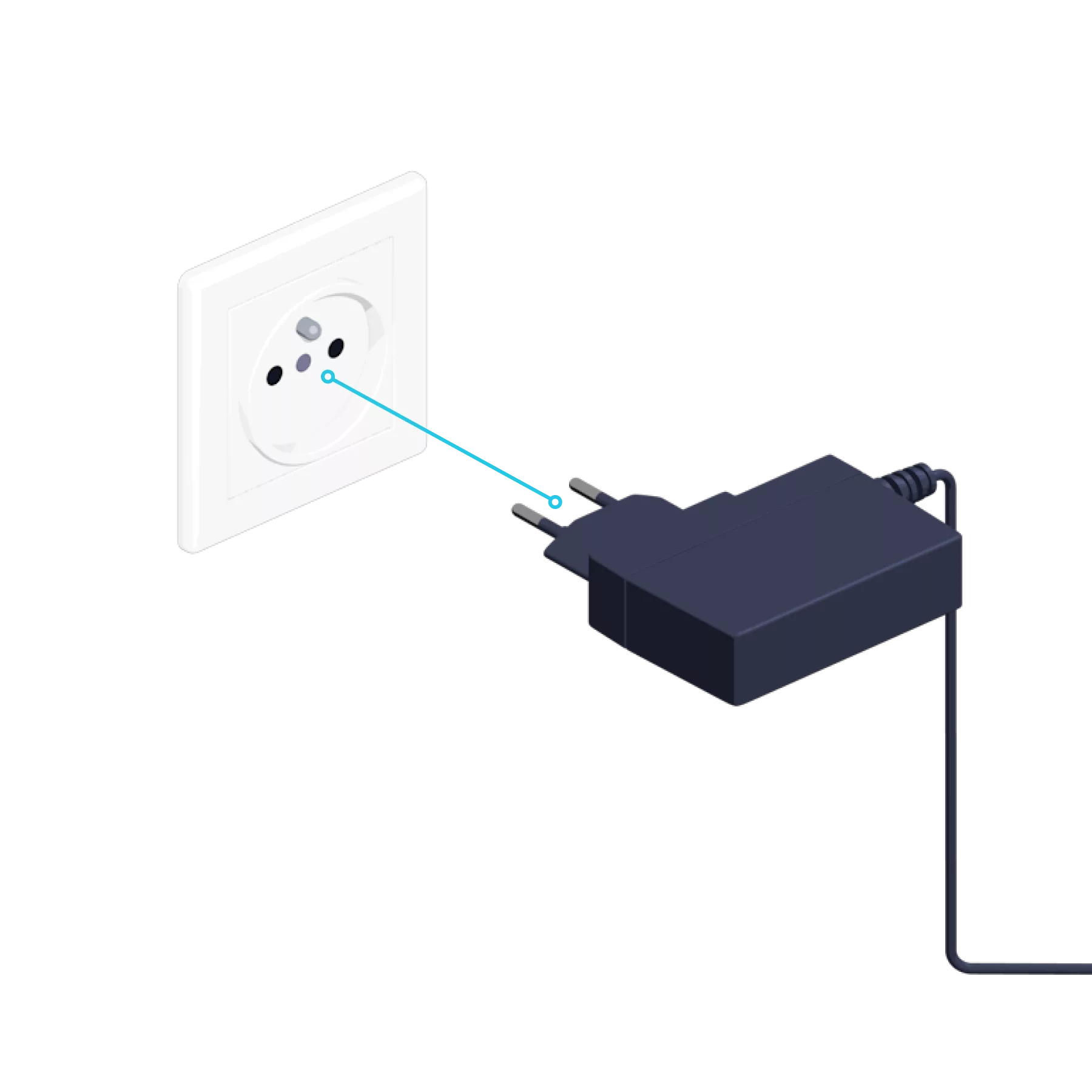
Switch on the Mobile Coverage Extender Pro
Connect the power cable to your Mobile Coverage Extender Pro and to the power socket.
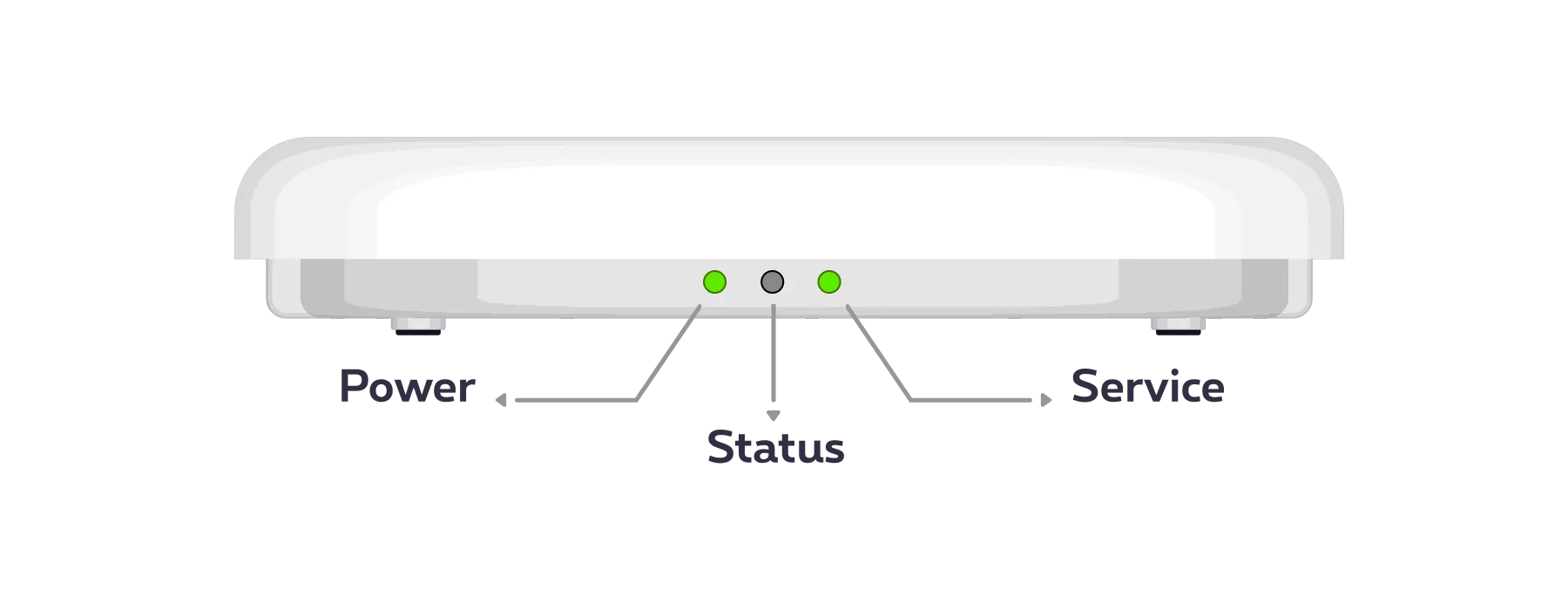

The “Power” indicator light turns on green as soon as the Mobile Coverage Extender Pro is switched on.
The device activation process begins. The ‘Service’ indicator light flashes green rapidly and remains lit once the Configuration is complete.

Set-up and configuration: 15 minutes maximum
-
Simply restart your mobile phone and make a call. If the ‘Service’ indicator light is green and flashing slowly, this means that the connection via the Mobile Coverage Extender Pro is active.
-
The ‘Power’ indicator light
 Off: no power.
Green: the Mobile Coverage Extender Pro is switched on. If it is not, check the power socket.
The ‘Service’ indicator light
 Flashing rapidly in green: initialisation, configuration or a software update is in progress (maximum 15 minutes).
Green light: your Mobile Coverage Extender Pro is ready for use; no calls or data transfers are currently in progress.
 Flashing slowly in green: one or more users have logged in to the mobile network via the Mobile Coverage Extender Pro.
The ‘Status’ indicator light
 Flashing red once: there is no connection between your b-box and the Mobile Coverage Extender Pro. Please repeat Step 4.
 Flashing red twice: no internet connection. Please check that you have access to your fixed-line internet via your b-box.
 Flashing red 3 times: temporary interference. The phones may be too close to the Mobile Coverage Extender Pro. Increase the distance between the phone and the Mobile Coverage Extender Pro.
 Flashing red 4 times: the device has overheated. Try placing your Mobile Coverage Extender Pro in a more open and/or well-ventilated area.
 Red light: the Mobile Coverage Extender Pro is experiencing excessive interference. This may be due to the proximity of another Mobile Coverage Extender Pro or a Wi-Fi access point. Move the Mobile Coverage Extender Pro.
There you go – you can now enjoy the best possible mobile coverage!