Watch on catch-up for up to 7 days after the programme is broadcast
Moving forwards and backwards within a programme
Manage subtitles
Managing audio description
Manage your favourites list
Saving energy
Using apps
Google Assistant
Before you begin
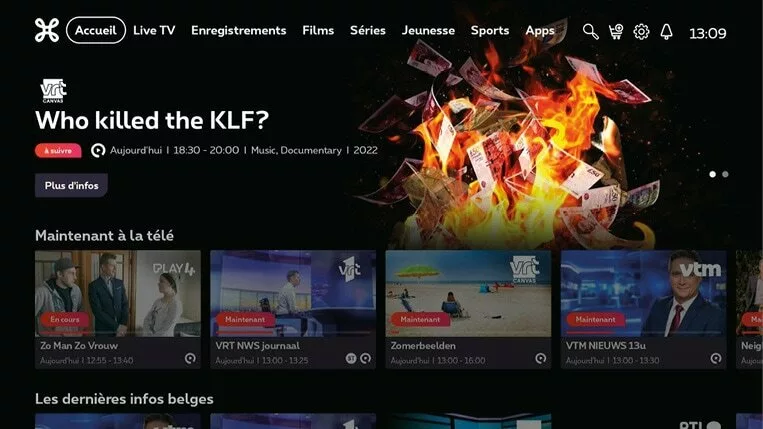
Main menu: all your TV content in one place
Find all your favourite TV content via the
: the best TV series, films and live or recorded sports programmes, or via your favourite streaming services. This means you have all your TV content in one place.
To browse the menu
To confirm your choice
Home: Here you’ll find an overview of the most popular programmes, personalised recommendations and shortcuts to your subscriptions and streaming services. It also lists the programmes you’ve added to ‘My List’ as well as those you’ve already started watching.
Live TV: all programmes currently being broadcast (live) on the various channels.
Recordings: Here you’ll find an overview of your available recordings, scheduled recordings and those due to expire soon.
Films: all films available, whether live, on demand or for hire (on-demand catalog). Do you have a TV subscription? If so, you’ll also find these films here.
Series: all available series, live, catch-up or for hire (on-demand catalog). Do you have a TV subscription? If so, you’ll also find these series here.
Children’s programmes: all children’s programmes available, live, catch-up or to rent (on-demand catalog). Do you have a TV subscription? If so, you’ll also find these programmes here.
Sport: all sport programmes and events available, live, on demand or to rent (on-demand catalog). Do you have a TV subscription? If so, you’ll also find these programmes here.
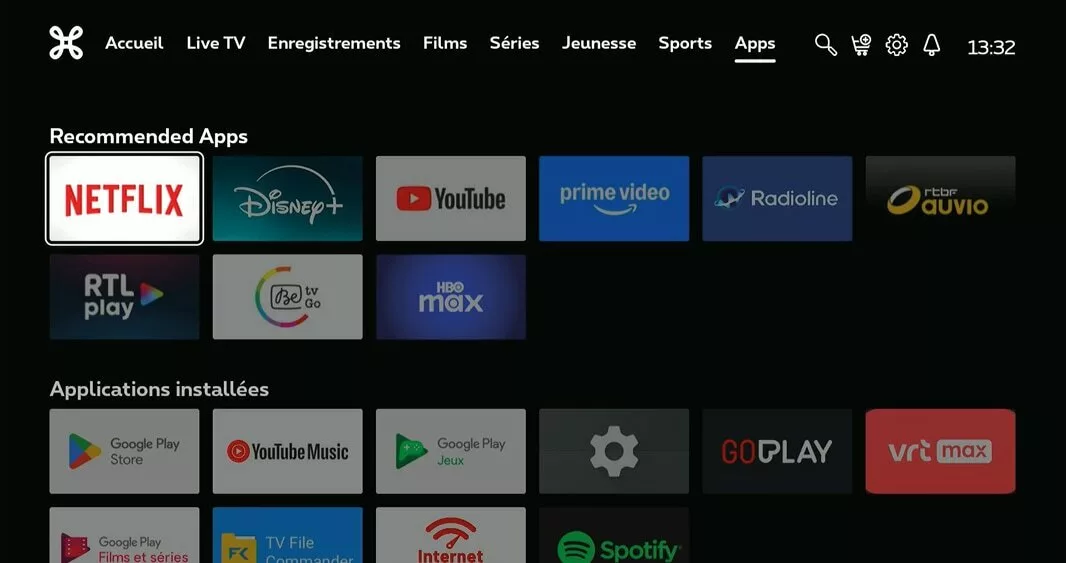
Apps: an overview of recommended apps and apps already installed. You can install more via the Google Play Store.
Search across all menus.
You can order additional TV packages such as Pickx Sports, Pickx Mix…
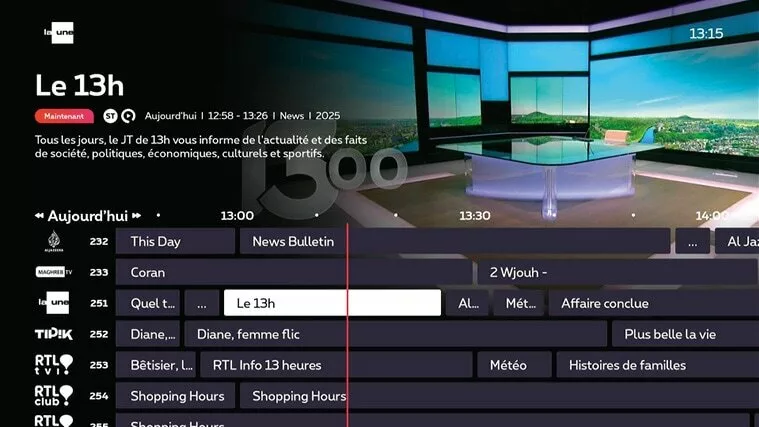
There are two ways to view the TV guide:
• using the
on the remote control.
• using the navigation buttons
on the remote control whilst watching live TV.
Change the TV guide layout
You can choose to view the TV guide in landscape or portrait mode. This option is only available via the
.
Choose your favourite layout!
Press
>
> TV Guide Layout and make your choice!
Horizontal: an overview of TV channels and programmes by time slot.
Use the navigation keys
left/right to move forwards or backwards in time.
Use the
and
to view the TV guide for the next or previous days.
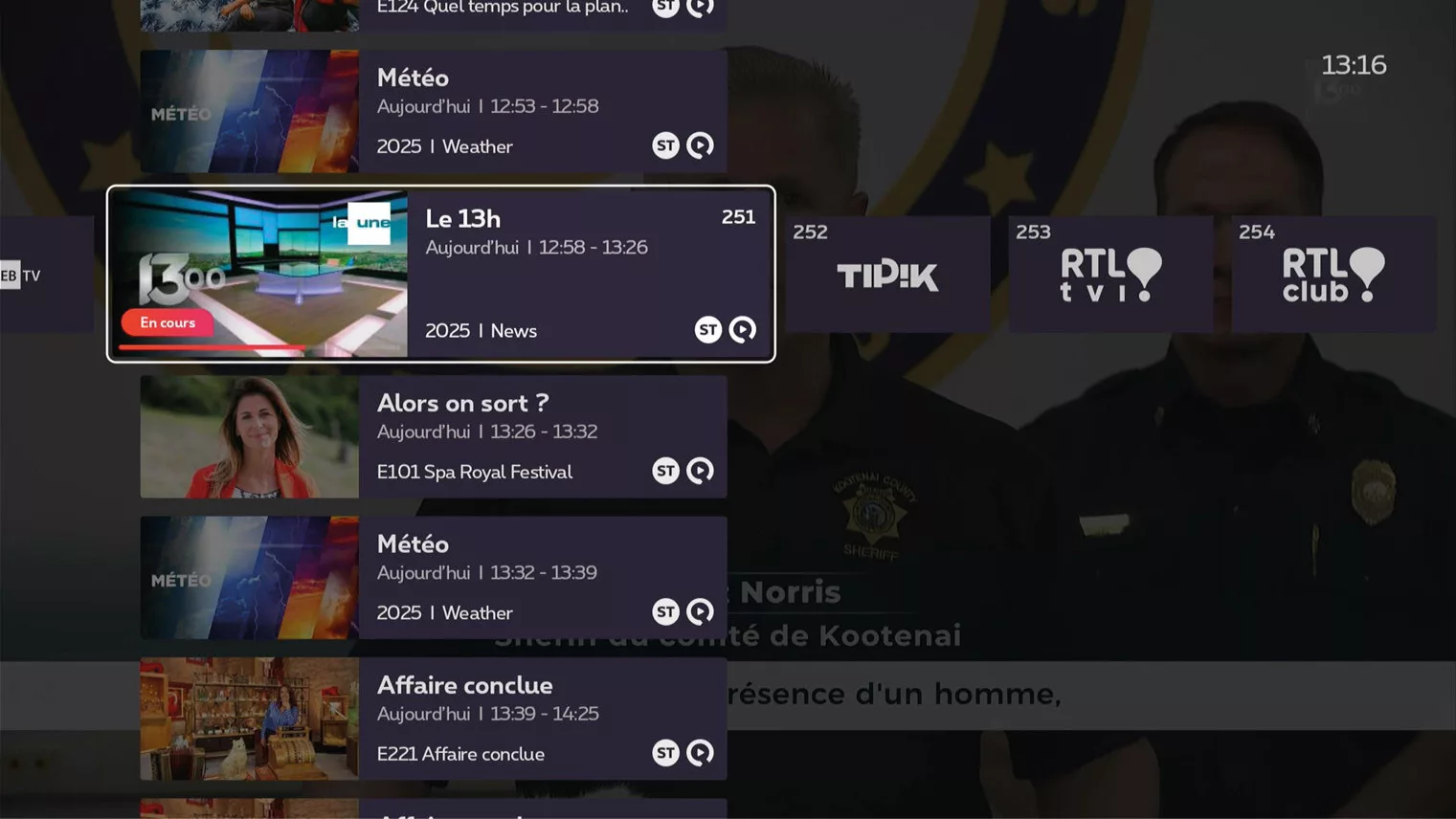
Vertical: a closer look at TV programmes by channel.
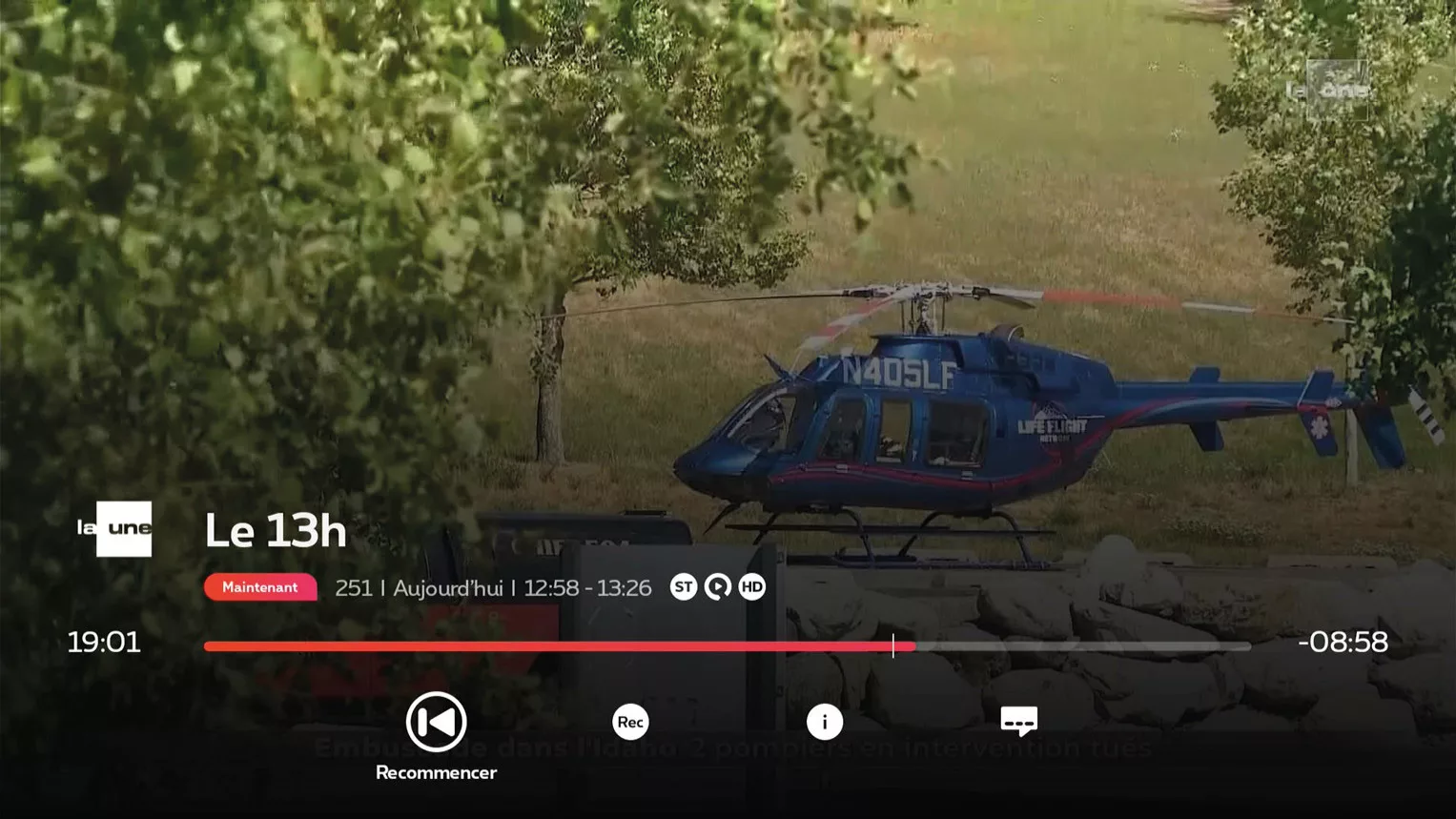
Reading screen
Press the button
whilst watching live TV to bring up the playback screen and immediately access a range of handy features.
The functions of the reading screen:
start again
Back to live coverage
save
more information
subtitles
Symbols on the TV screen
We use handy symbols on TV screens to indicate available functions or to warn of potentially inappropriate content.
Symbols indicating a function
This way, you can see straight away which functions are available for a particular programme.
The registration failed
This programme can be watched up to 7 days after it has been broadcast via TV Replay
A recording is scheduled
Scheduled recordings for a series
Recording in progress
Batch recording in progress
Recorded programme
Recorded series
Channel you have added to your favourites
Programme in HD quality
Symbols displayed at the start of a programme
When a programme begins, GoedGezien age and content symbols appear on Flemish channels. Their purpose is to warn viewers of potentially inappropriate content in TV programmes.
Find out what they mean here.
Age-related symbols
Recommended age limit:
suitable for all ages, no restrictions
Ages 6 and over
Ages 10 and over
Ages 12 and over
Ages 16 and over
Content-related symbols
Potentially inappropriate content:
violence
fear
sex
foul language
negative stereotypes
addictive substances
List of TV channels
Which TV channels are available?
On the Proximus website, you’ll find an overview of the TV channels included in the basic package:
Would you like to know which channels are included in an additional TV package?
Use the filters to see the full range of channels for each package straight away.
You can also print this overview.
Which lists of TV channels can I choose from?
In Flanders and Wallonia, you’ll automatically receive the list corresponding to your region.
If you change the language on your TV Box, the list will adapt to your chosen language (NL or FR).
In Brussels (zone 02), you can choose between two lists:
a list starting with the main Dutch-language channels, followed by French-language channels
a list starting with the main French-language channels, followed by the Dutch-language channels
The other channels appear afterwards.
Activation of your preference via:
>
> Channel renumbering
Organise your TV channels however you like
Would you prefer the channels you watch most to appear at the top of the TV guide? You can easily customise the order of the channels:
Via pickx.be
On pickx.be/chaines, you can reorder your TV channels in a simple and intuitive way. This change will automatically be reflected across all Pickx platforms: TV Box, the Pickx app and pickx.be.
On Pickx.be/chaines, use your Proximus account (the same one you use for the Proximus app).
Select a channel from the list of TV channels and drag it to the desired position.
Would you like to move a channel to a specific number? Click on ‘Move’ (on the right-hand side of your screen) and enter the number you want. Make as many changes as you like.
Finally, click ‘Save’ to save your changes.
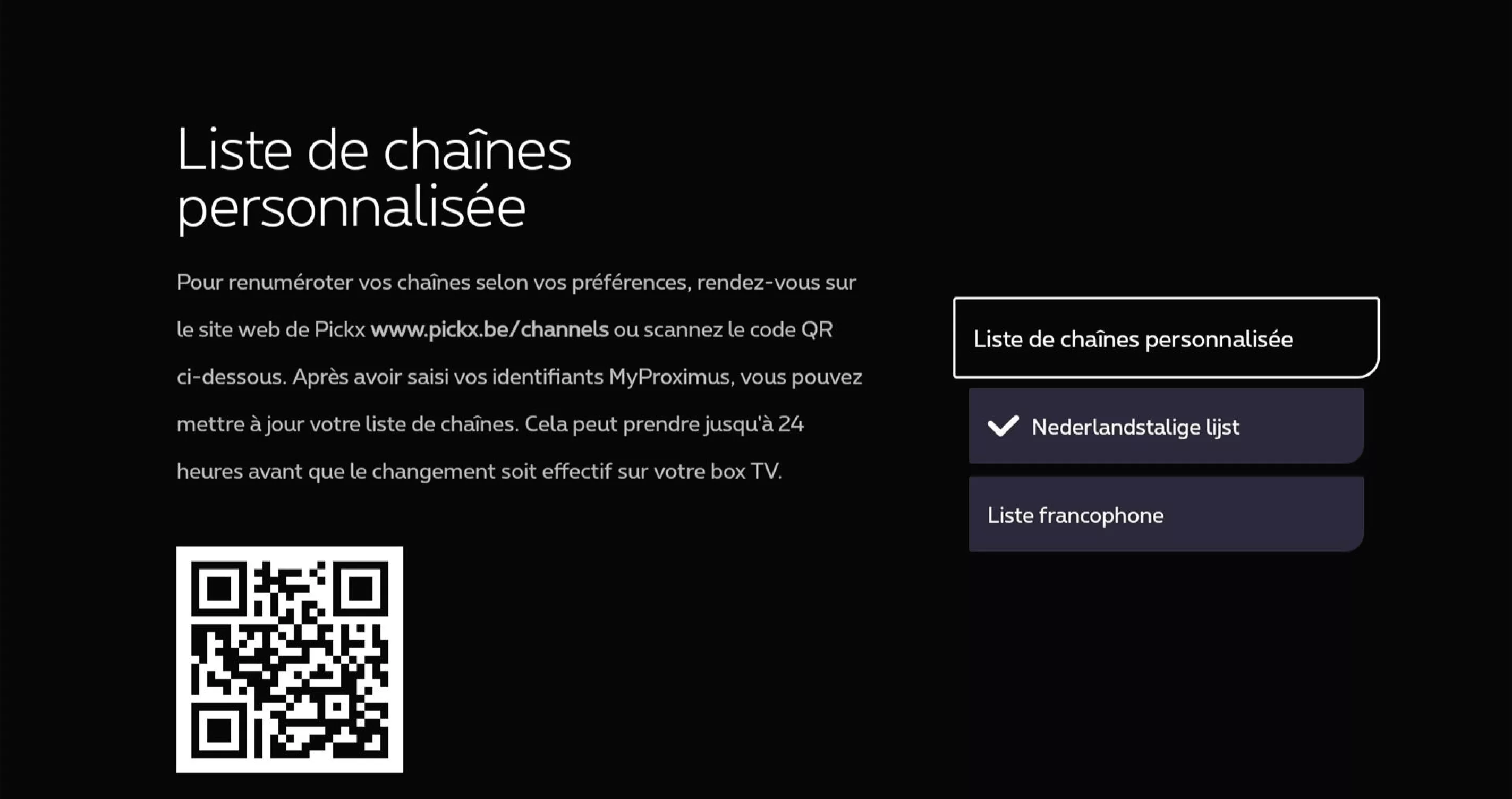
Via the TV Box settings
Press
>
> Channel renumbering.
There you will find a QR code to customise your channels via pickx.be, or you can choose a default List of TV channels in French or Dutch.
Record a programme or a series
With Pickx, you can manage your recordings wherever you are. Whether you’re at home or on the move, you can do so using the Pickx app or via pickx.be. You can always find your recordings
easily. Recordings are stored for 90 days by default.
Record a programme
Schedule your TV recordings and never miss your favourite programme or series again.
Via the TV guide
• Press the key
• Select a programme.
• Press
then click on Record or Record Series.
Whilst a programme is being broadcast
Press the key
The programme will start
recording immediately.
Or
Use the
to select a programme > Record.
Watch a recording
You can find your TV recordings via the Pickx homepage.
• Press the
> Recordings.
• Select a programme and press Watch.
Deleting a recording or a programme
To delete a recording of a programme or an episode of a series, follow these steps:
Press the ‘’ button > ‘Recordings’.
Search for a programme.
If there is only one recording, you can select Delete straight away.
If there are several episodes of a programme, scroll down to view all the episodes. Then select the episode you wish to delete.
Manage recorded programmes
The ‘Manage Recordings’
option only appears if there are several episodes of a programme. Would
you like to delete episodes you’ve already recorded or cancel future recordings? We’ll explain how to do this.
Press the ‘’ button > ‘Recordings’.
Select a programme from your list, then choose ‘Manage recording’.
You can then choose to Cancel the series recording
or Delete:
if you choose ‘Delete’, all recorded episodes will be deleted.
If you choose ‘Delete’ and ‘Cancel Series Recording’, not only will the episodes already recorded be deleted, but no new recordings will be made in future.
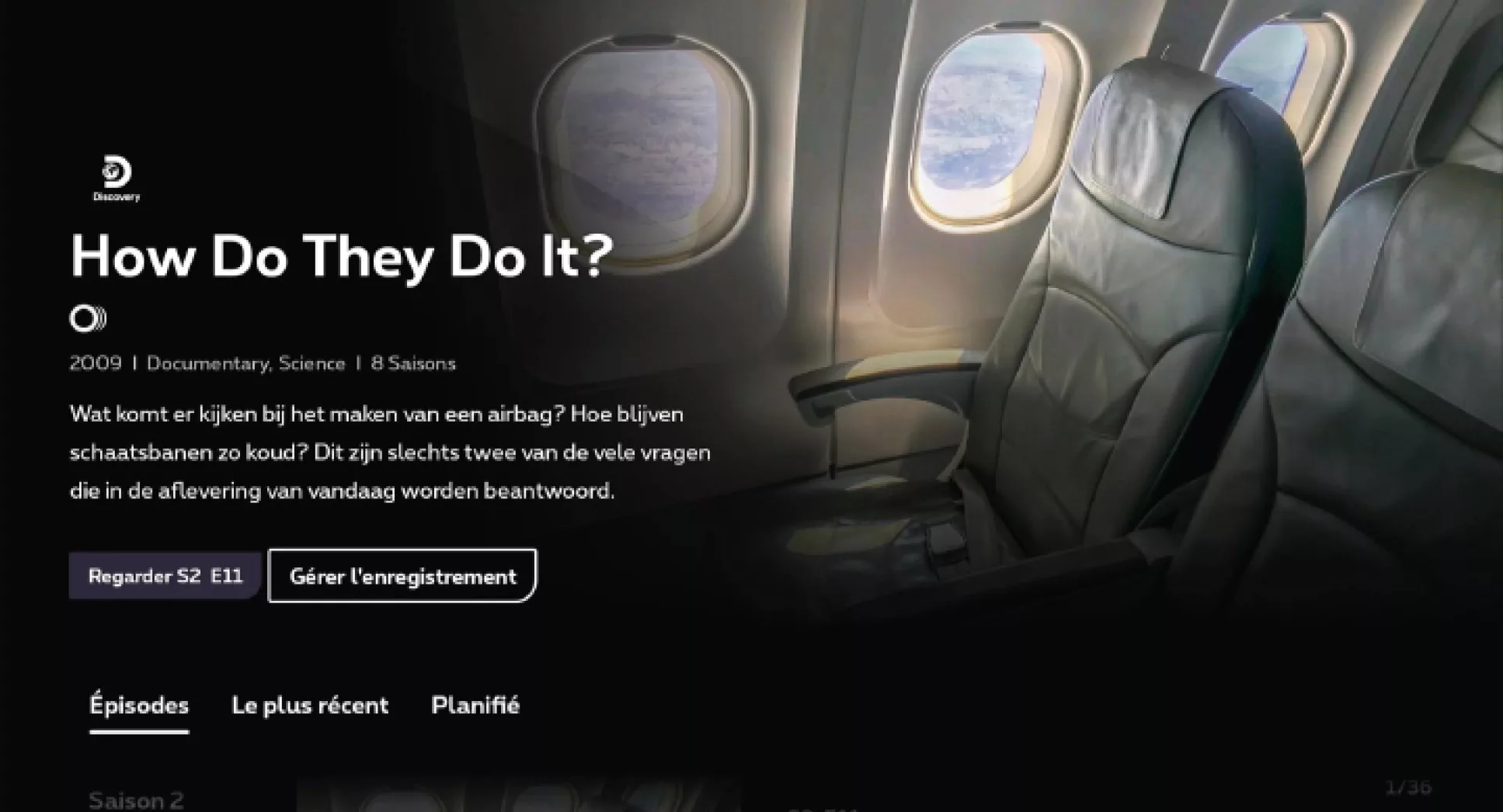
Watch on catch-up for up to 7 days after the programme is broadcast
With TV Replay, you can watch a programme again for up to 7 days after it has been broadcast. TV Replay programmes are marked with this symbol
. This feature is automatically included in your TV subscription.
Would you also like to use the ‘Fast-forward’ feature? If you want to pause a programme, rewind or fast-forward, even during adverts, you can do so with the TV Replay+ option (subscription required).
The TV guide allows you to easily find a programme and watch it again (= Replay).
Press the
(= the TV guide).
If you’d like to watch a programme that hasn’t finished yet:
select the programme marked with the ‘
’ symbol. Press the ‘
’ button and select ‘Watch
’.
If you want to watch a programme broadcast within the last 7 days:
use the left/right navigation buttons to move forwards or backwards in time. Use the and buttons to view the TV guide for the following or previous days.
Select a programme marked with the symbol , press the button and select ‘Watch’.
Moving forwards and backwards within a programme
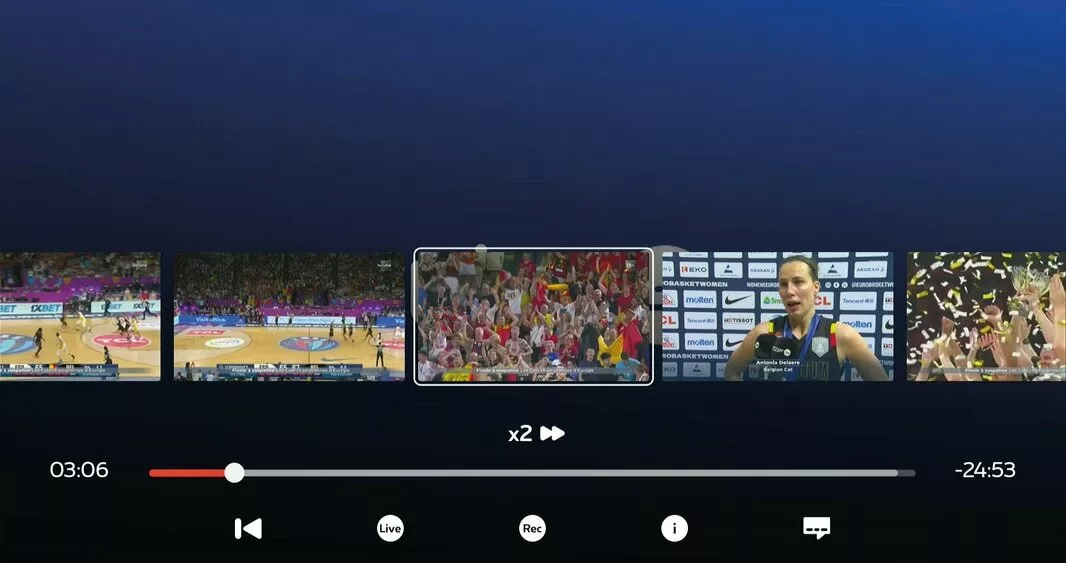
It’s very easy to fast-forward or rewind to a specific point when watching a recording. As you scroll, thumbnails appear at the bottom of the screen. You can then easily find the section you want.
Press the
or
to move backwards or forwards.
Simply pressing the navigation key
allows you to display a list of the images you can navigate to within the programme.
Each additional press of the navigation key
starts fast-forward or rewind at a slow, medium or fast speed (3 speeds).
Or
Press the navigation keys
If you press the left arrow, the programme rewinds by 10 seconds. If you hold the button down for longer, the programme rewinds by a further 10 seconds. Release the button at the point where you want to start watching again.
If you press the right arrow, the programme will fast-forward by 30 seconds. If you hold the button down for longer, the programme will fast-forward by a further 30 seconds each time. Release the button when you reach the point where you want to watch from.
Or
Press the key
and press the up arrow
to display the status bar.
Then press the left or right button
to rewind 10 seconds or fast-forward 30 seconds. Keep pressing the left or right button to quickly skip to a specific point in the programme.
Manage subtitles
Do you find it difficult to follow everything in a programme, or do you have a hearing impairment? If so, subtitles are a good solution. They are available for certain programmes on certain channels.
Subtitles can be activated for live programmes, catch-up TV (TV Replay) and recordings (where subtitles are available).
You can manage subtitles:
whilst watching a programme, press
>
(Subtitles
)
Select the subtitle language and confirm.
If none of these options appear, it means that no subtitles are available for this programme on this channel.
If you activate subtitles for a particular programme, they will automatically apply to all other programmes.
Managing audio description
With audio description
, a voice describes what is happening on screen in addition to the programme’s own voices and sounds. This is useful for people who are blind or partially sighted. Programmes for which ‘audio description’ is available are marked with
(= audio description).
You can control the audio description:
whilst watching a programme, press
>
(Subtitles
)
Select the language for the Audio Language
and confirm.
If none of these options appear, this means that no audio description is available for this programme on this channel.
If you activate audio description for a specific programme, it will automatically apply to all other programmes (where available).
Manage your favourites list
There are two ways to create your list of favourite TV channels:
in the vertical TV guide
Press the button
>
to display the List of TV channels
> press the up arrow
to select the channel.
Add/remove favourites
> Add
or Finish
when you’re watching a programme
Press the up arrow
to display the List of TV channels and select the channel.
Add/remove favourites
> Add
or Done
To view your list of favourite channels:
Press
> Live TV > Favourites
Saving energy
You can reduce your TV Box’s energy consumption by switching it off:
using the Proximus remote control:
Normal standby mode
Briefly press the button
to activate normal standby mode
. Your TV Box will then consume 0.2 watts. It takes a few seconds for your TV Box to restart.
Want to save even more energy? Then opt for ‘deep standby mode’.
deep standby mode
Press and hold the button for 3 seconds
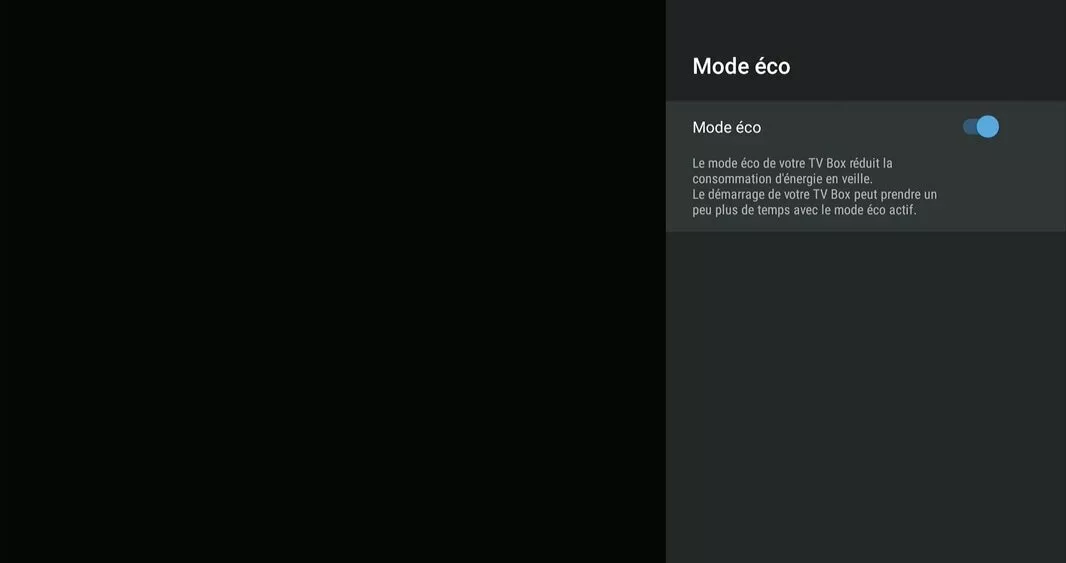
for 3 seconds to activate eco mode. Your TV Box will then consume just 0.005 watts. It will take 1 to 2 minutes for your TV Box to restart.
via the TV Box settings:
Press
>
> Support > Eco Mode.
Using apps
When setting up your TV Box, you can log in to the Google Play Store (using your username and Password). This will give you access to apps (Disney+, YouTube, Netflix, Spotify, Twitch, etc.) for your TV.
Didn’t do this during setup? You can still log in later via
Press
> Apps >
The button
then allows you to easily access your favourite apps.
Press
> Apps
Google Assistant
You can control your TV using voice commands.
You are free to enter your login details during set-up, but voice control will also work without them.
To do this, enable the ‘Google Assistant’:
1. Press the button
2. say a command out loud (in the language of your TV interface: NL/FR/EN)
A few examples: “Search for Star Wars”, “Launch Netflix”, “Turn up the volume”…



 Search across all menus.
 You can order additional TV packages such as Pickx Sports, Pickx Mix…
 Configure the TV Box settings.
 Notifications regarding technical updates appear here.