Check out our demos using the
on the remote control.
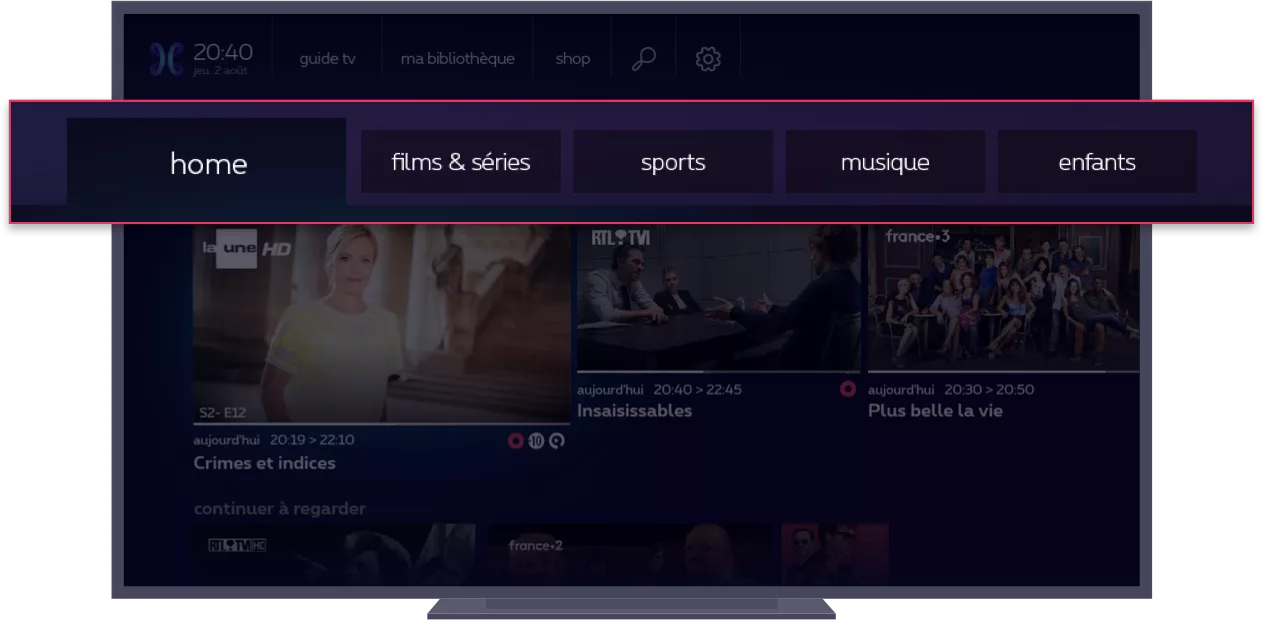
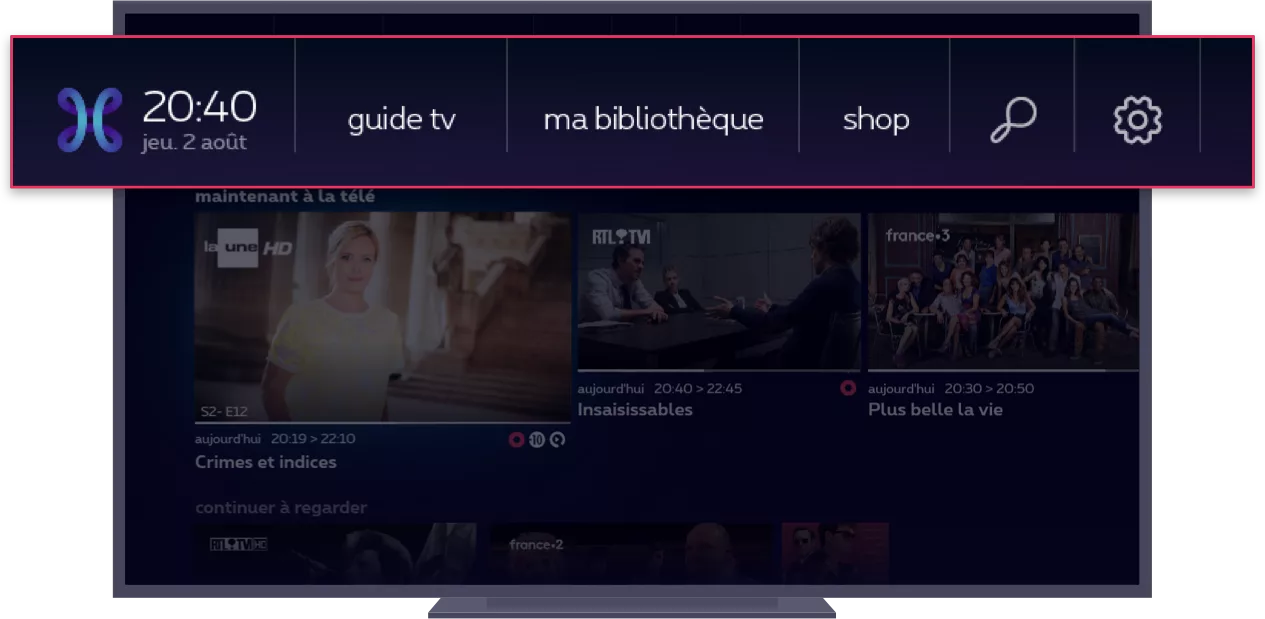
The menu
To get around.
To confirm your choice.
Direct access points
TV guide
My library: your current recordings, scheduled programmes and rentals
Shop: to buy or rent content
: search across all menus
: settings and account information
Dedicated sections
Sections dedicated to films and TV series, sport, music and children, with personalised recommendations.
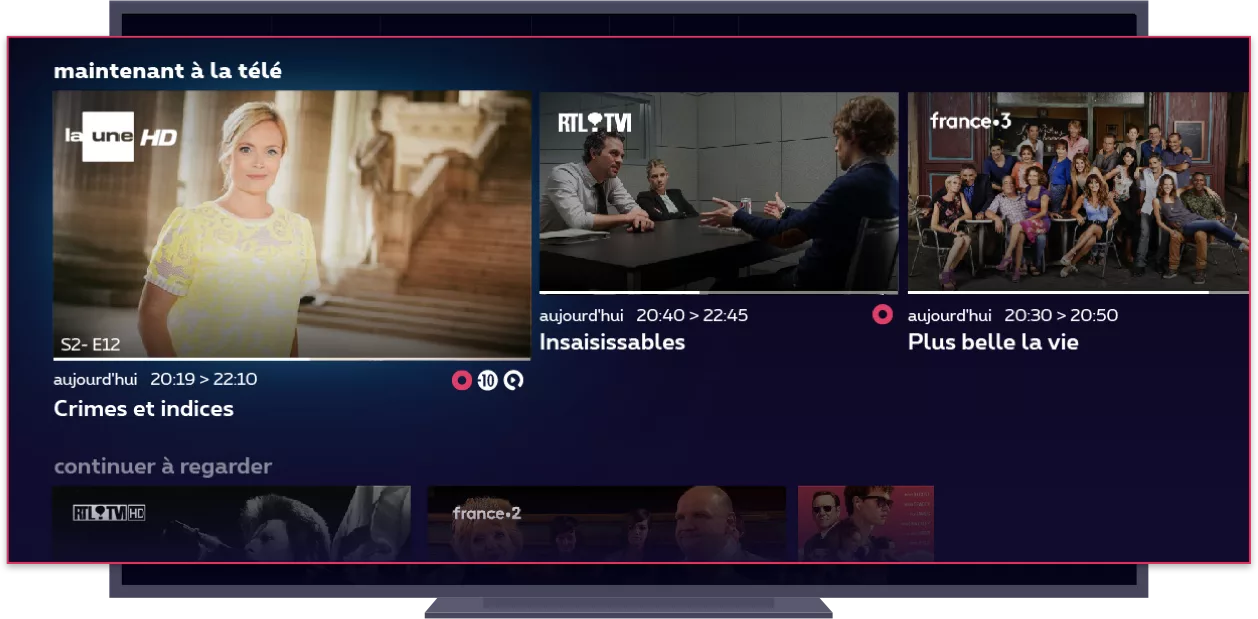
Personalised programmes and recommendations
Personalised programmes and recommendations are presented by category (e.g. ‘On now’, ‘You might like this’, ‘Coming soon’, etc.).
Meaning of the symbols
Give a rating (score)
Reminder
Age groups
Parental controls
HD/3D
Programme not available via TV Replay or TV Replay+ once it has been broadcast in full
Programme available via TV Replay or TV Replay+
Film/programme purchased from the on-demand catalog
Scheduled recording
Recording in progress
Registration complete
Partial registration
File name conflict; the save cannot proceed
The registration has failed
Erasure-protected recording
Series of recordings or on-demand films with multiple versions
List of TV channels
Which TV channels are available?
On the Proximus website, you’ll find an overview of the TV channels included in the basic package: https://tv.pickx.be/en/channel-discovery
Enter your postcode to see which channels are available in your area.
Would you like to know which channels are included in an additional TV package?
Use the filters to see the full range of channels for each package straight away.
You can also print this overview.
Which lists of TV channels can I choose from?
In Flanders and Wallonia, you’ll automatically receive the list corresponding to your region.
If you change the language on your TV Box, the list will adapt to the chosen language (NL or FR).
In Brussels (zone 02), you can choose between two lists:
a list starting with the main Dutch-language channels, next the French-language channels
a list starting with the main French-language channels, followed by the Dutch-language channels
The other channels appear afterwards.
Activation of your preference via:
→
→ Channel renumbering
Organise your TV channels however you like
Would you prefer the channels you watch most to appear at the top of the TV guide? You can easily customise the order of the channels.
To do this, press:
→
→ Renumber channels
Manage subtitles
Are you hard of hearing, or do you find it difficult to follow everything in a programme?
Subtitles can help. They are available for certain programmes on certain channels.
There are two options:
For all channels
→
→ Preferences → Spoken languages and subtitles
Select a language, then confirm your choice.
Subtitles will appear on all live programmes, as well as on catch-up programmes and your recordings (where available).
For a single channel
When watching a programme, press:
→ subtitles
or spoken languages and subtitles
If you do not see any of these options, it means that there are no subtitles available for this programme on this channel.
If you enable subtitles on a particular channel, they will take precedence over the ‘subtitles for all channels’ (which you selected via
).
Managing audio description
"Audio description"
is a voice-over that explains to blind and partially sighted people what is happening on screen, in addition to the programme’s normal voices and sounds.
Programmes with “audio description” are identified by the symbol
You can manage audio description:
for all channels
→
→ Preferences
→ Spoken languages and subtitles
Make your selection and confirm.
You will receive the audio description for live broadcasts, recordings and TV Replay programmes (where available).
for a specific channel
Whilst watching a programme, press:
→ languages spoken and subtitles → audio language
If you do not see any of these options, there is no audio description available for this programme on this channel.
If you enable audio description for a specific channel, it will take precedence over ‘audio description for all channels’ (which you selected via
).
Record a programme
You can use this button to record the programme you are watching at any time.
Scheduling a recording via the TV guide
In the TV guide, select the programme you want to record, press
and follow the on-screen instructions.
Manage your scheduled recordings via:
Your recordings remain available for 60 days. If you wish to keep them for longer (up to 50 hours of recordings, for a maximum of 3 years), go to the list of recordings, select the programme you want and make your choice.
Configure the recording settings
→
→ preferences → recordings
Resolving booking conflicts
Resolve a booking conflict when making a booking or at any time via:
→ My library → My schedules → Recording clashes
If you do not resolve the conflict, only the first scheduled recording will be retained.
Rent a film, a series or a TV programme
In the shop, select what you’d like to watch, press
and follow the on-screen instructions.
To purchase content, you’ll need to enter your PIN code. By default, your PIN code is 1234
(unless you’ve already changed it).
For films, you can use various filters to find what you’re looking for more quickly:
recently added
year of release
A–Z
latest releases
popular
You can change the shop’s language (to French or Dutch) via:
→
→ Preferences → Shop language
To perform the activation of a TV Entertainment, Kids or Football option, go to:
→ shop → activate an option
Listen to the radio
In the shop, select what you’d like to watch, press
and follow the on-screen instructions.
Listen to thousands of podcasts and national and international radio stations via the free Radioline app
, available in the shop
.
To install the app:
→ shop → apps → radioline → launch
To listen to the radio station or podcast of your choice:
→ my library → my apps → Radioline
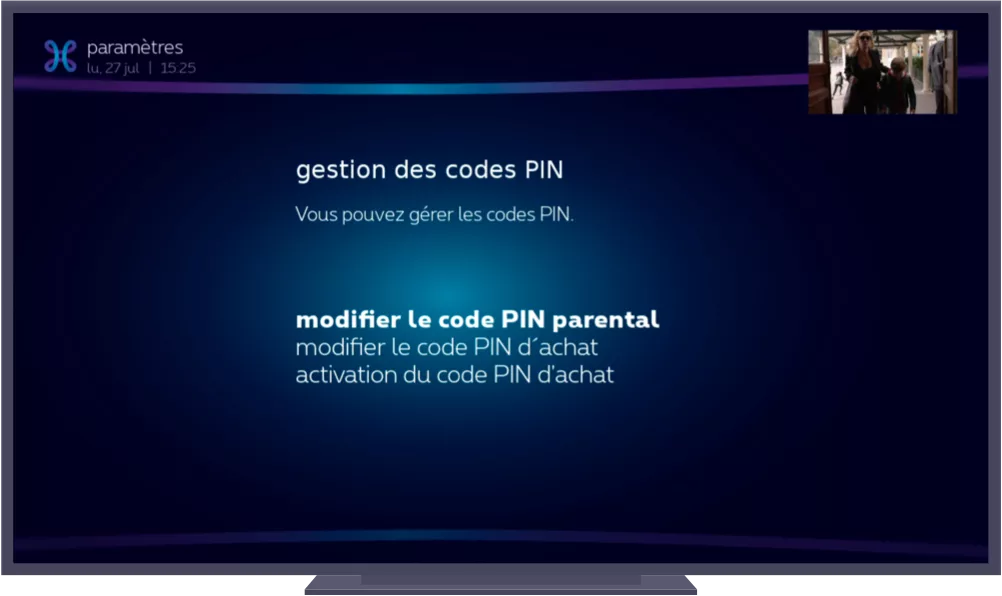
PIN codes
There are two PIN codes: one for purchases
in the shop and the other for parental controls
. By default, both codes are 1234
.
To change or deactivate them:
→
→ System → Security and privacy → PIN code management
Forgotten your PIN code? Call 0800 99 696 free of charge.
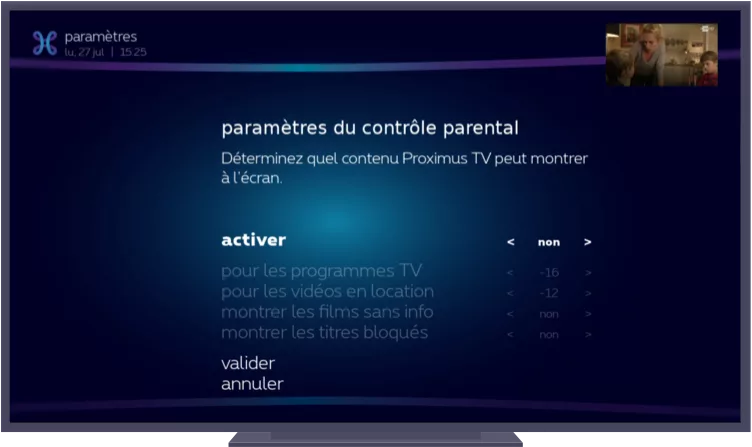
Parental controls
Access to certain content is restricted by default according to a number of settings. If you wish to change, deactivate or re-enable these settings:
→
→ system → parental controls
You will need to enter a parental control PIN code to confirm any changes and to access restricted content. By default, the parental control PIN code is 1234 (unless you have changed it).
Watch TV on all your screens
Anywhere, anytime
Watch TV wherever you are, on all your devices – computer, smartphone or tablet – with the Pickx app or at www.proximuspickx.be!
Download the free app from the App Store or the Play Store and use your Proximus account.
Find out more about our apps.



 : search across all menus
 : settings and account information