View all guides
TV Box Android
Installation GuideBefore you begin
If you are replacing a TV Box
- Call 0800 99 696 free of charge and follow the instructions. Please make sure you have a Proximus payment statement or letter to hand, showing your customer number and line number.
- Please make sure you use the new remote control and all the cables provided.
- If a technician replaces your TV Box, they will, of course, bring the necessary equipment with them.
Required components for the installation
- The TV Box Android (4K Ultra HD/HDR)
- The remote control and its batteries
- The power supply cable
- The Ethernet cable
- The HDMI cable
Connect the TV Box to the Internet Box+
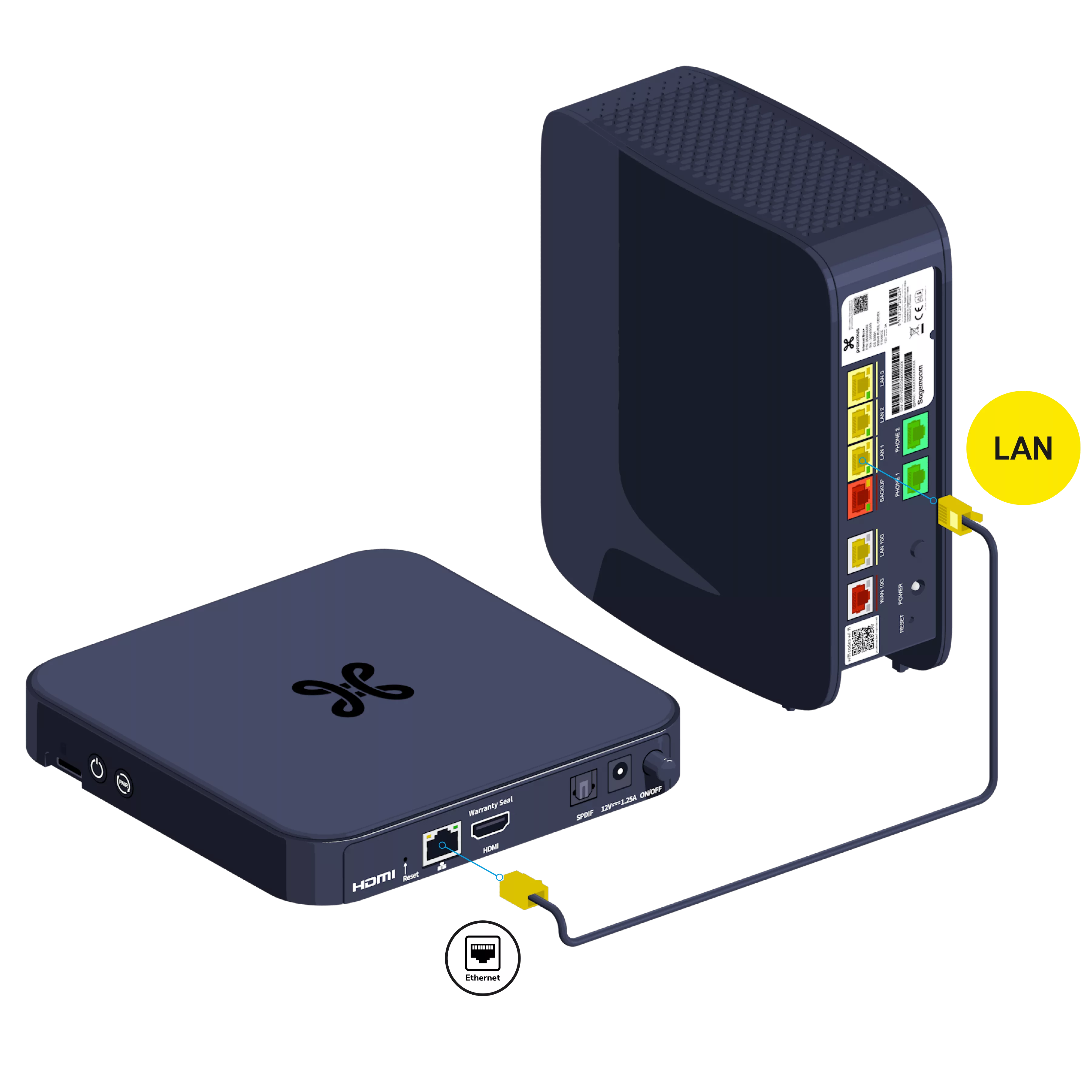
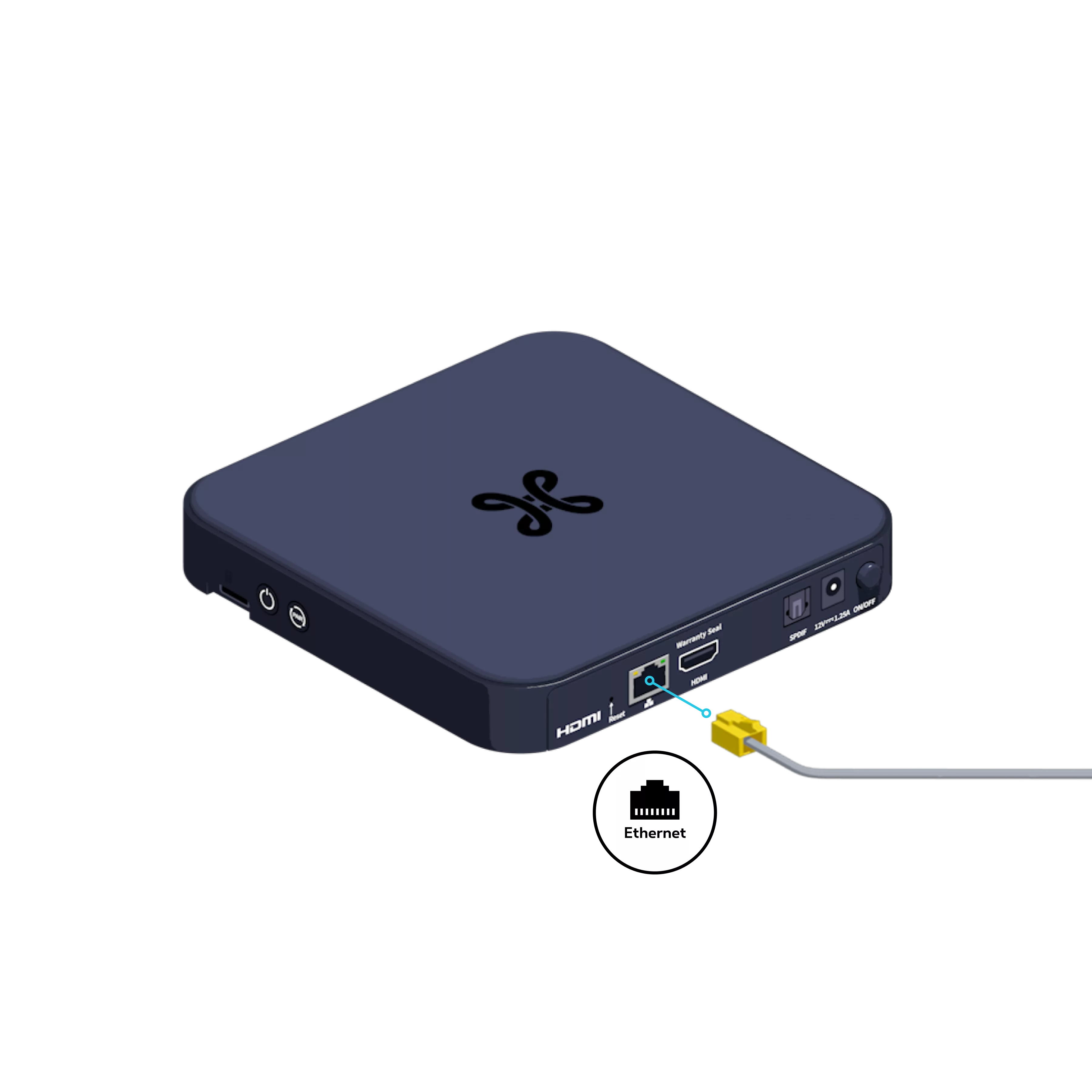
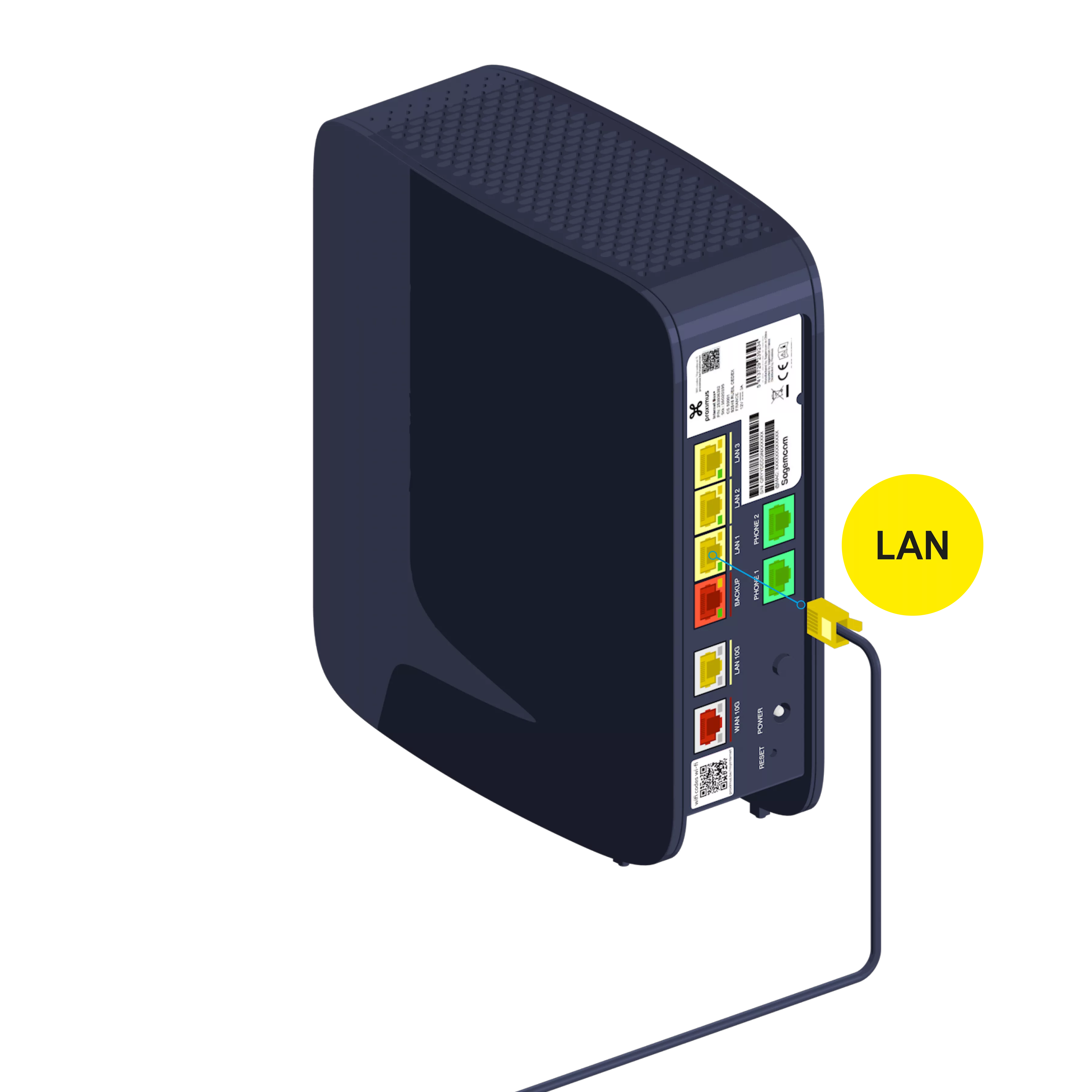
Use the Ethernet cable and connect it to one of the yellow LAN ports on the back of the Internet Box+.
-
Don’t want to trip over cables, or are your Internet Box+ and TV Box too far apart? Don’t panic – discover the Wi-Fi Booster!!
-
If you’d like to connect an extra TV to Pickx, you’ll need a second TV Box. First, check whether this is possible in your home!
Switch on the TV Box
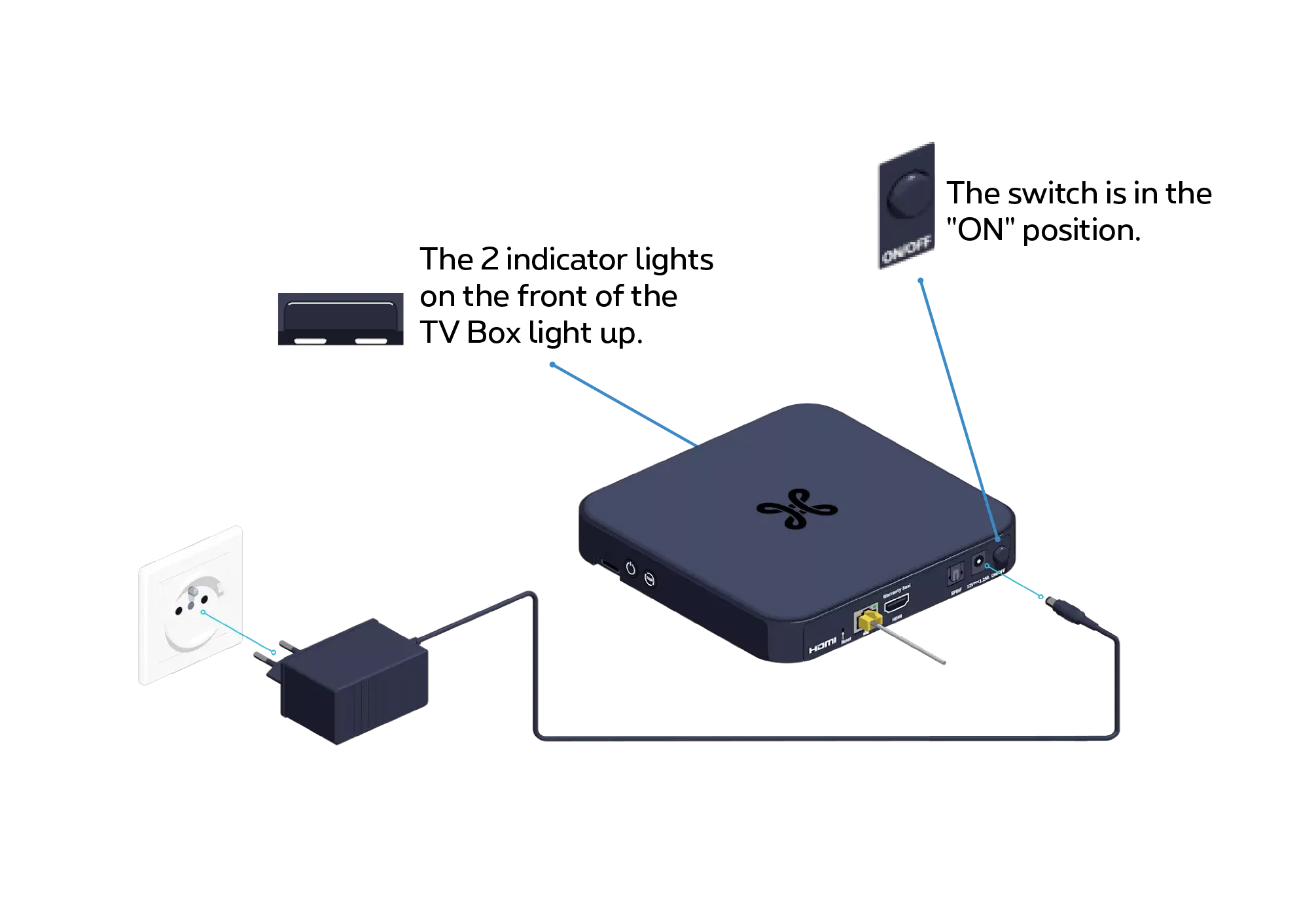
Connect the power supply cable to your TV Box and to a power socket.
-
The solution is to switch it off and on again using the switch on the back of the TV Box. This will restart it.
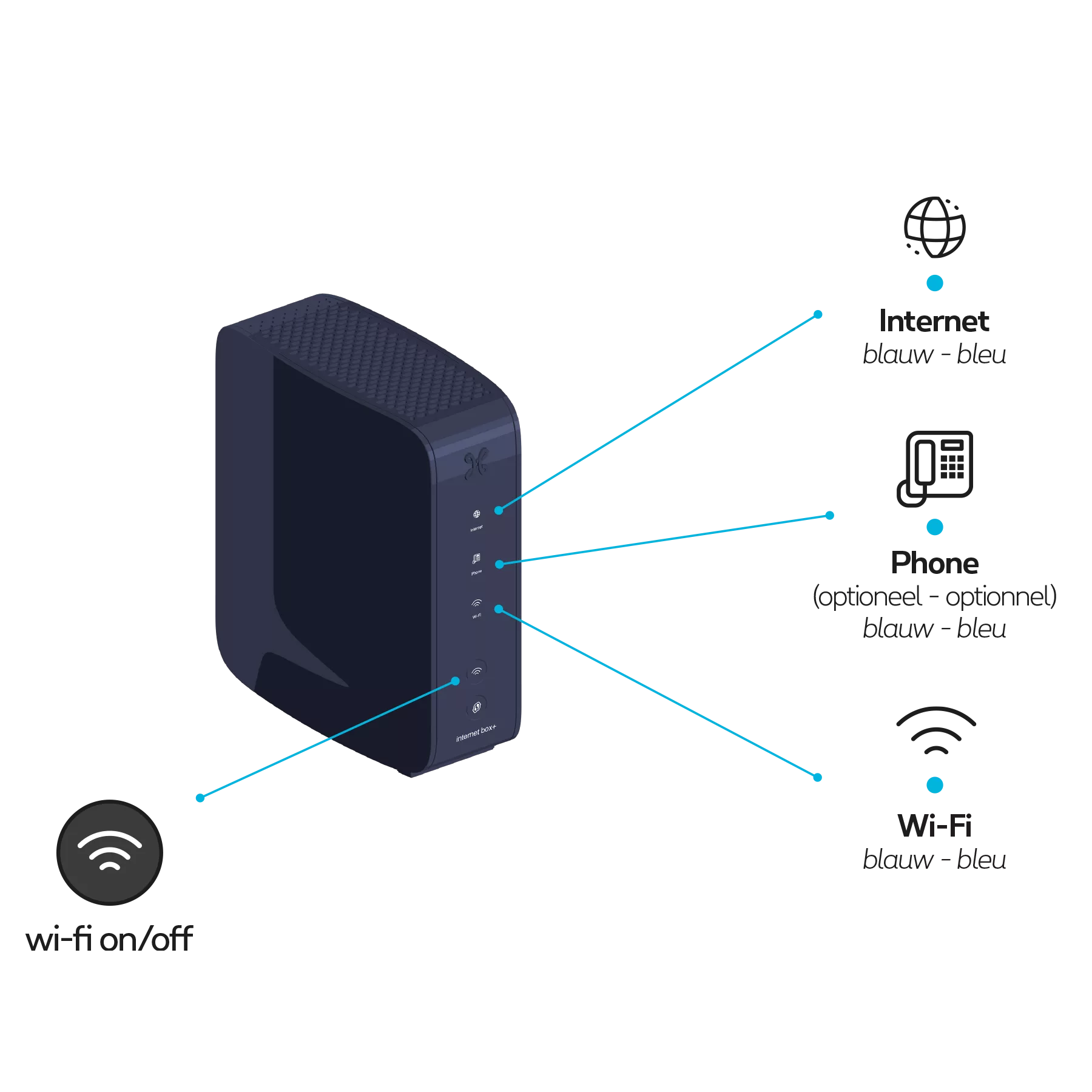
Check the indicator lights on the Internet Box+
The indicator lights on the front should turn blue.
Connecting the TV Box to the TV
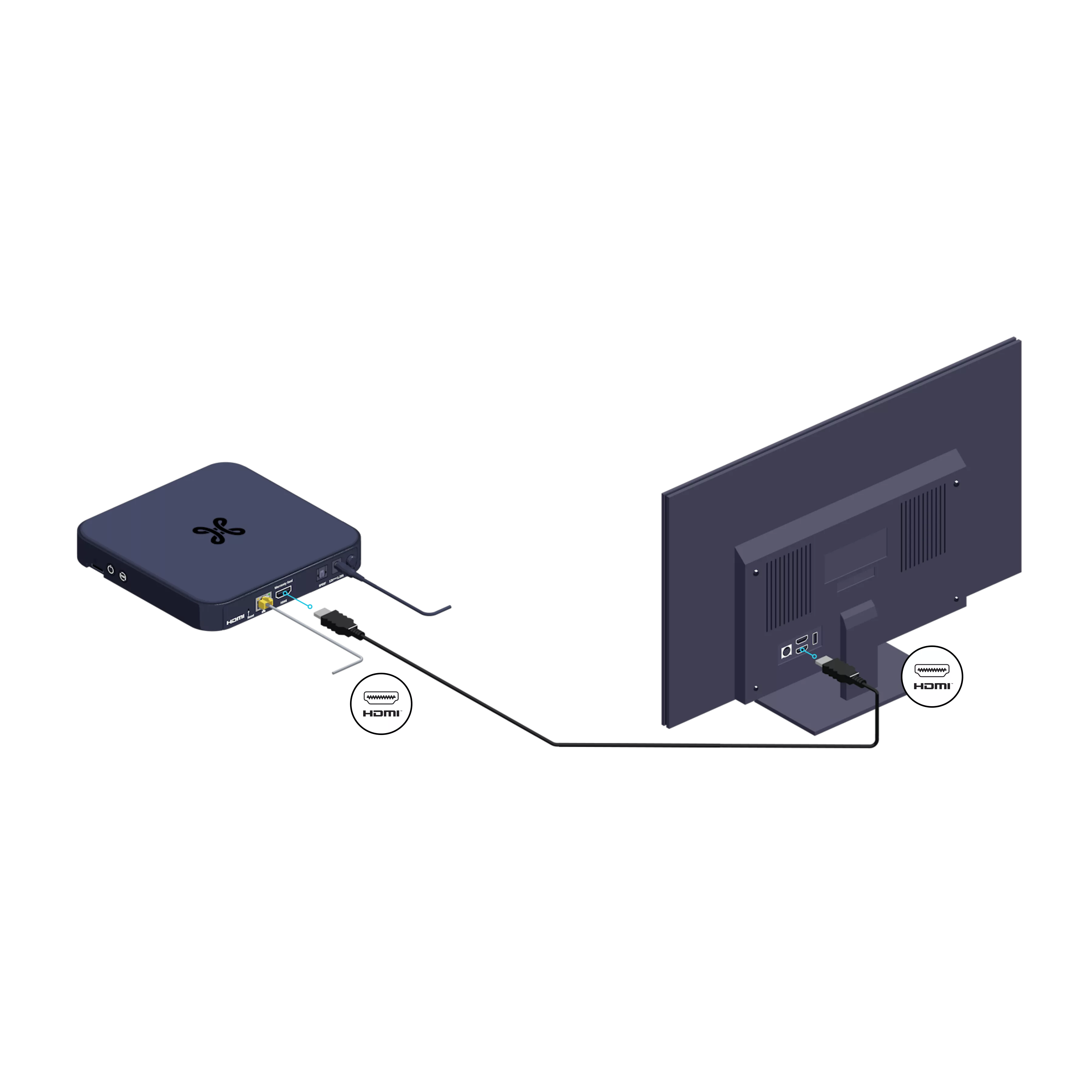
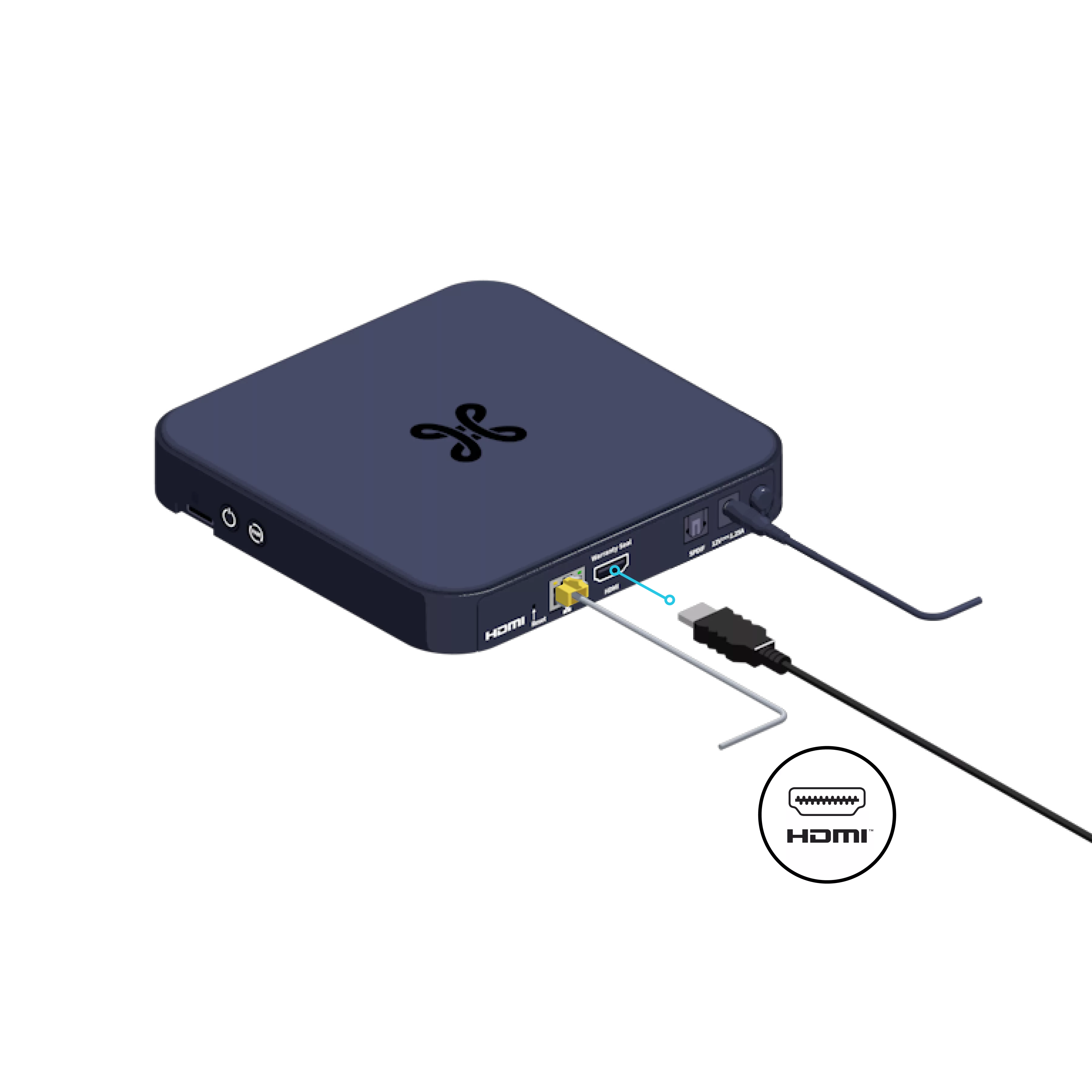
We’re almost done! Now connect your TV Box to your TV using the HDMI cable.
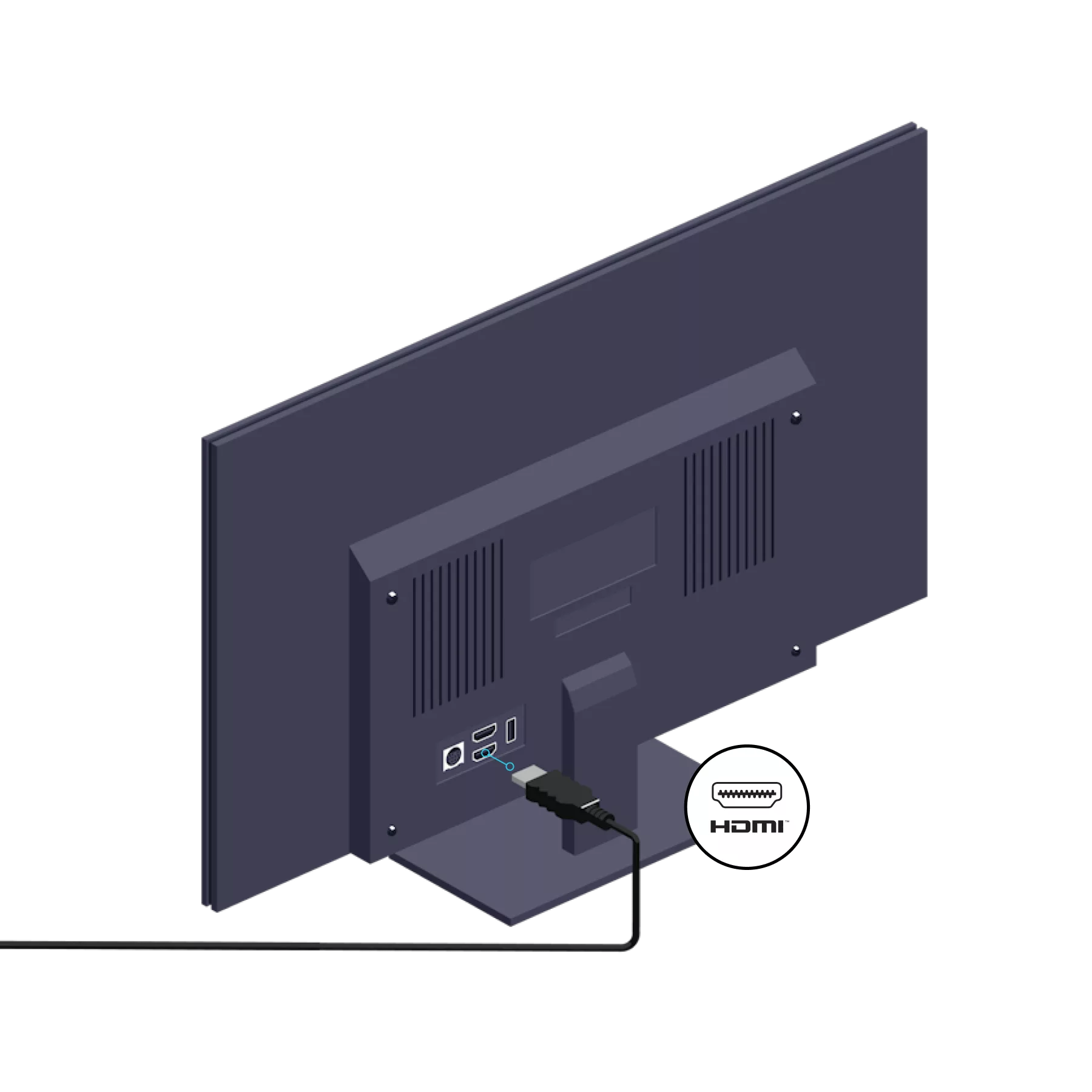
-
There are two options available to you, depending on the connections available on your audio device Please refer to your audio system’s manual for further information.
Configure the TV Box
Turn on your TV; the start-up screen will appear.
If this does not happen, use your TV’s remote control to select the external source to which your TV Box is connected (HDMI1, HDMI2, HDMI3, etc.).
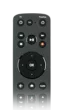
Then take the Proximus remote control, remove the protective tab from the batteries and enter the details shown on the screen.

These arrow keys allow you to navigate through the menu.

To confirm your choice.
This remote control only works with this TV Box.
Below is an overview of the main configuration screens. During installation, you will be asked to carry out further configurations, such as Bluetooth. Simply follow the on-screen instructions.
Do you have a Google account? Unlock your TV’s full potential by logging in during Configuration! This is useful, for example, if you want to use ‘voice control’. If you skip this step, it won’t affect your Pickx experience in any way.
Enter your line number
This is the telephone number or identification number shown in the confirmation letter you received when your TV subscription was activated.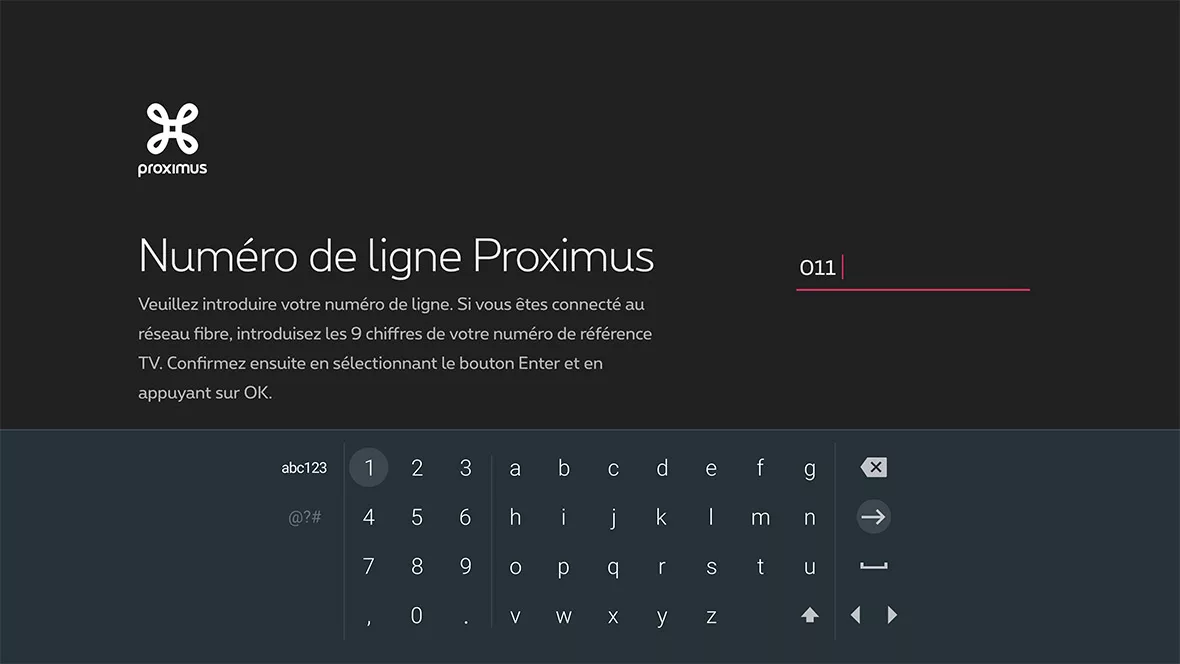
Enter the PIN code
The parental PIN code is set to 1234 by default, unless you have already changed it. Did you enter the wrong PIN code? Use the arrow keys to navigate and re-enter the correct code. Forgotten your PIN code? Call 0800 99 696 free of charge.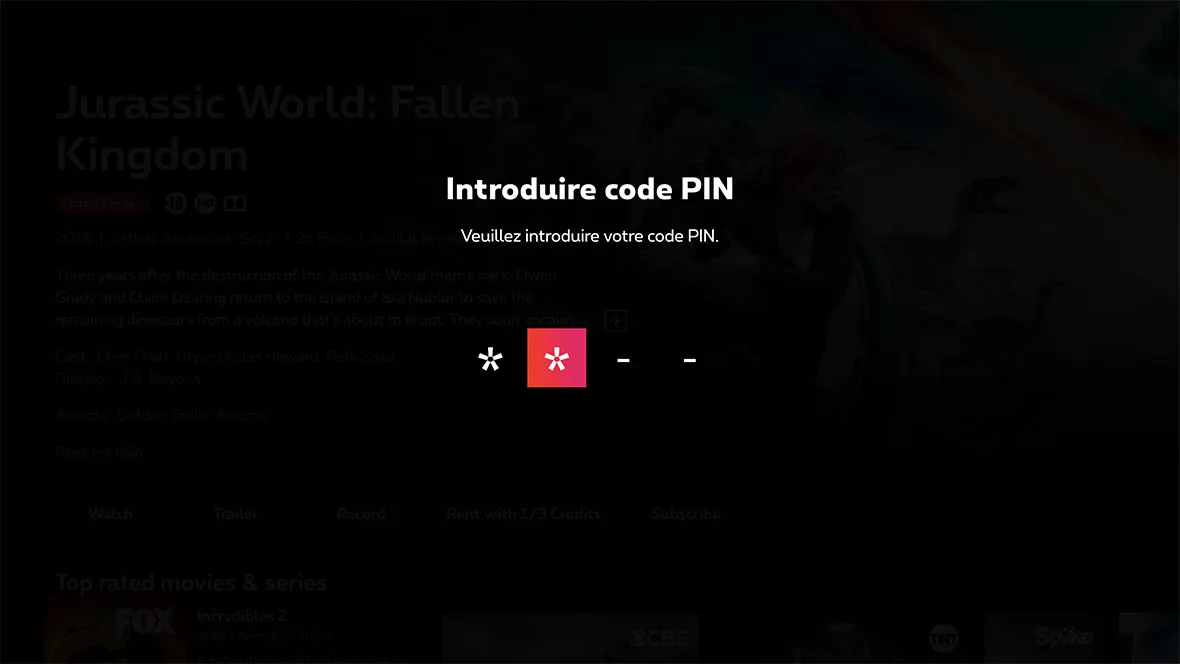
Pickx screen


Configuration may take a few minutes.
There you go, your TV Box is now configured!
Other useful guides